
IPTV on LG Smart TV — the webOS Setup Guide
LG owners get a slightly easier ride than Samsung owners — but the same hard rule applies: webOS is not Android. No APKs, no TiviMate, no sideloading. The good news is that LG’s Content Store still carries the main IPTV players directly (no USB rituals), the Magic Remote is genuinely the best TV remote for navigating 45,000 channels, and there’s one specific gotcha — big playlists freezing older sets — that this page will save you from. Samsung owners should use our Samsung Tizen guide instead; every other brand is on the generic smart TV guide. All eight device guides are indexed on the supported devices.
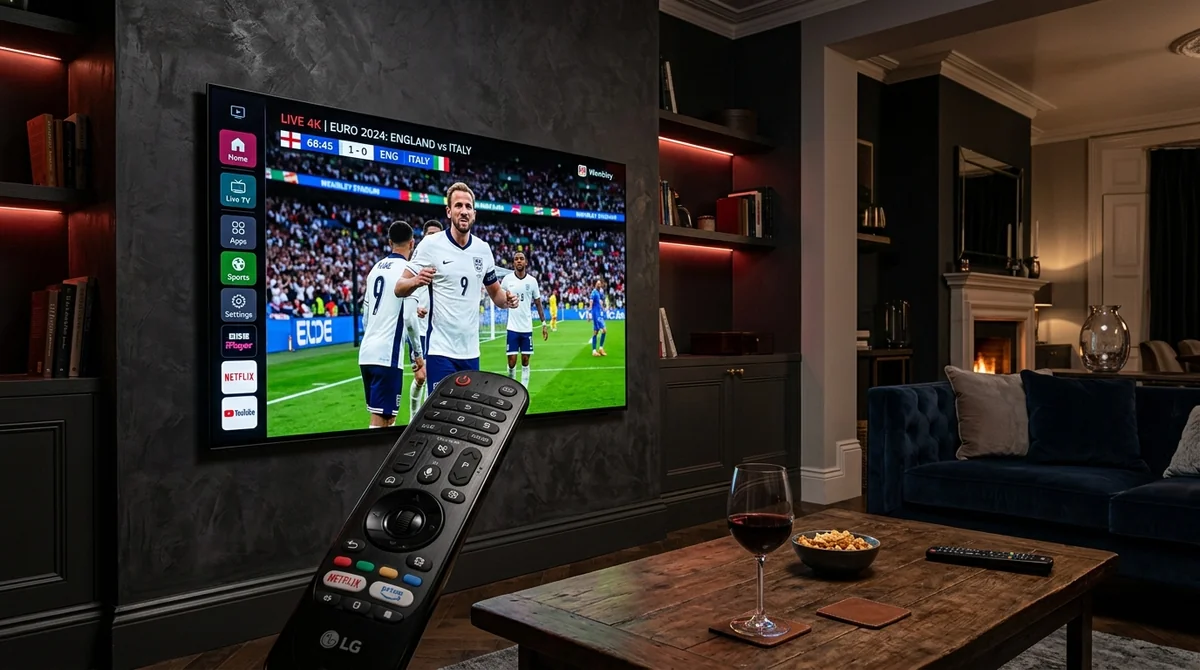 Magic Remote Pointer Navigation • 50fps UK Sports
Can You Install TiviMate on an LG TV?
No. Same answer as Samsung, different OS. TiviMate is Android-only; LG TVs run webOS. This is the correction posted in virtually every LG IPTV thread, and LG users ask “what’s the TiviMate alternative” more often than anyone else — so here are the community’s actual answers, ranked:
- IPTV Smarters Pro — the default pick. Excellent stability, full EPG, Xtream Codes login on the TV, and Magic Remote-friendly navigation. The beginner-to-intermediate sweet spot.
- SmartOne IPTV — the pick if you care about the movies side: proper movie metadata and artwork that makes the VOD library feel like Netflix.
- IBO Player — the budget pick: modern interface, free 7-day trial, cheap one-time/lifetime licence. Good SIPTV successor.
- Smart IPTV (SIPTV) — the lightweight fallback. Still in the LG Content Store (unlike Samsung’s store, where it was removed), basic EPG, tiny and fast.
| App Name | LG Store Status | Magic Remote Pointer | Movie / VOD Artwork | EPG Guide Quality | Licensing Model |
|---|---|---|---|---|---|
| IPTV Smarters Pro | Available directly | Smooth & responsive | Category tiles | Full electronic programme guide | Free install |
| SmartOne IPTV | Available directly | Full pointer support | Netflix-style TMDb posters | Rich channel schedule | ~$2.50/yr or ~$13 lifetime |
| IBO Player | Available directly | Excellent pointer support | Modern poster wall | Fast 7-day TV guide | 7-day trial, then ~€8 lifetime |
| Smart IPTV (SIPTV) | Available directly | D-pad preferred | Basic file list | Minimalist lightweight EPG | ~€5.49 one-time activation |
Our Smarters Pro setup and IBO Player guide compare the leading contenders in detail. One note the community repeats: the same players often exist on both the Samsung and LG stores, but the operating systems are not interchangeable — identify your OS first, then pick the app.
How to Set Up IPTV on an LG TV
Two routes, both standard. The Xtream Codes route is the community preference:
Route 1 — Xtream Codes login (recommended):
- Open the LG Content Store, search for “IPTV Smarters” / “Smarters Player” / “IBO Player” / “Flix IPTV”, install.
- Launch it and choose Login with Xtream Codes API (not M3U).
- Enter the username, password, and server URL from your provider — watch for trailing spaces with the on-screen keyboard.
- Let the guide populate fully before judging; build your favourites from the EPG grid.
Route 2 — MAC / device ID web portal:
Some apps (SIPTV especially) show a MAC address or device ID on the start screen instead of a login form. Note it down, open the app’s playlist portal on your phone or PC, enter the ID plus your M3U and EPG URLs, then reload the app on the TV. The point the community loves about this route: you never have to type a long URL with the TV remote.
Your subscription includes both login types — with us, they arrive on WhatsApp within minutes of the free 24-hour trial request. The technology behind the login is explained in our the Xtream login.
The Magic Remote Is a Genuine Advantage
Here’s an LG plus worth calling out, because the community does: the Magic Remote’s pointer control makes navigating enormous channel lists dramatically easier than the D-pad grind on other TVs. When you’re scrolling through hundreds of UK channels or a 60,000-title VOD library, point-and-click beats arrow-mashing by a mile. It’s a small thing that changes daily use more than any app choice — and it’s the main reason LG owners report higher satisfaction with the EPG-grid experience than Samsung owners.
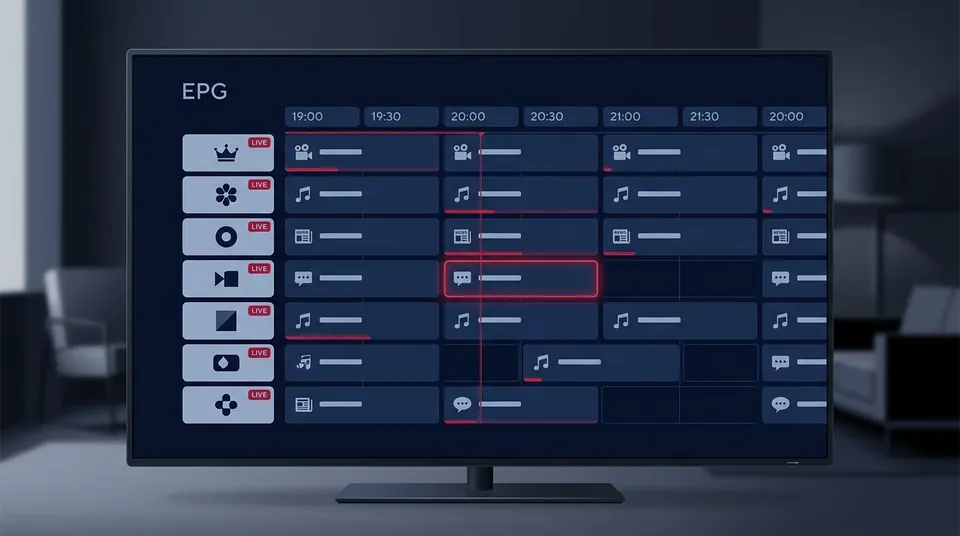 Point & Click Channel Switching • Zero Sideloading
Why Big Playlists Freeze Older LG TVs (and the Fix)
This is the LG-specific gotcha that generates the “iptv app freezing on older LG tv with big playlist” threads: most IPTV apps parse the entire playlist on the TV itself, and a 28,000+ channel playlist can overwhelm the limited RAM in older LG sets — the app freezes during loading, not during playback.
The practical fixes, in order:
- Use favourites aggressively. Load the full list once, favourite the channels you actually watch, then browse favourites instead of the full list.
- Ask your provider for a smaller package. This is the honest fix the forums recommend — a trimmed playlist with the countries you watch loads faster and never freezes. (It’s also why “45,000 channels” is a headline number, not a daily-use number — see what channels you actually get.)
- Pick a lightweight player. SIPTV’s tiny footprint handles big lists better on old hardware than heavier apps.
- Consider the hardware. If the TV is 8+ years old and freezing constantly, a Fire OS Firestick in an HDMI port (see our Firestick setup guide) offloads everything to newer hardware for the price of a takeaway.
 Xtream Codes API & SIPTV Portal Setup
One caution on evidence: a few players marketed as “server-side processing” claim to fix this by parsing the playlist remotely. The community mentions them, but the evidence is thin — treat the claim as unverified and prefer the fixes above.
LG Developer Mode: Do You Need It?
Short answer: no. LG has an official Developer Mode app in the Content Store — install it, toggle it on, and you get a TV IP plus passphrase for sideloading webOS apps from a PC tool. It’s legitimate power-user territory, but you don’t need it for any standard IPTV setup. Every app recommended on this page installs from the Content Store normally. Only go down the Dev Mode route if you’re installing a webOS app that isn’t in the store — which, for IPTV watching, you aren’t.
Can You Use a VPN on an LG TV?
Same as Samsung: no native VPN apps on webOS. Router-level VPN or Smart DNS are your only options. If VPN-at-the-device matters to you — for instance, if your ISP throttles match-time traffic and you want per-device control — that’s a genuine reason to run IPTV from a Firestick or Android box instead of the TV’s own apps. Our IPTV on Firestick covers the on/off test protocol: check with the VPN off first, since a VPN can cause the buffering you’re trying to fix. The full per-OS VPN map is on our smart TV setup.
Which webOS Version Do You Need?
Generally webOS 3.0 and up runs the current IPTV players — that’s LG TVs from roughly 2016 onwards. Older than that and you’re in NetCast territory, where the app situation is bleak; the Firestick-in-HDMI-port fix applies again. Check yours under Settings → General → About This TV.
Magic Remote Not Working Well in Your IPTV App?
“Magic remote not working well in IPTV app” is a real thread topic, so here’s the troubleshooting: the Magic Remote’s pointer mode is brilliant in apps built for it and awkward in apps that aren’t. If the pointer feels jumpy or unresponsive inside your player:
- Check the app’s pointer support. IPTV Smarters Pro and IBO Player handle the Magic Remote well; some lighter apps (older SIPTV builds especially) were designed for D-pad navigation and treat the pointer as an afterthought. Switching apps often fixes it instantly.
- Re-pair the remote. Hold Home + Back (or the Settings/Wheel button, depending on model) until it re-registers — a surprising number of “broken remote” threads end here.
- Drop to D-pad mode. Pressing the OK/wheel button centre-click often toggles cursor behaviour; arrow keys still work in every app regardless.
If the remote works fine everywhere except one app, it’s the app — not the remote, not the TV, not your subscription.
SmartOne IPTV: the Movies-First Pick for LG
One app deserves special mention for a specific audience: SmartOne IPTV is the community’s pick for LG owners who mainly watch the VOD library. Its selling point is proper movie metadata — posters, synopses, ratings pulled from databases like TMDb — so 60,000 films and box sets browse like Netflix instead of a file list. Live TV and EPG are solid too, but the movies side is why people choose it over Smarters.
It’s a paid app (one-time licence, roughly in line with IBO Player’s pricing), available directly from the LG Content Store — no sideloading, no Dev Mode. If your household is 80% films and box sets and 20% live sport, SmartOne is arguably the best-fitting player on webOS. If it’s the other way round, stick with Smarters or IBO.
LG IPTV FAQs
Is Smart IPTV still on the LG Content Store?
Yes — unlike Samsung, LG still carries SIPTV. It’s the lightweight fallback: basic EPG, tiny footprint, one-time activation fee to the app developer (separate from your subscription).
Why does my IPTV app show no TV guide on LG?
The player matters more than the TV. Some lightweight players ship with minimal or no EPG; IPTV Smarters Pro and IBO Player both give you a full guide. If the guide specifically won’t update, our EPG troubleshooting page walks through the fix.
Smart IPTV trial ended — how much is activation?
A one-time fee to the app developer (roughly $6), after a free trial — not to your provider, and not part of your subscription. See our plans and prices for what the subscription itself costs: £14.99/month with everything included.
Tell us your LG model and we’ll sort the rest.
Message us on WhatsApp at +44 7877 162001 — we’ll confirm your webOS version, recommend the right player, send your login, and get your 24-hour free trial running. No card, no commitment.