
What is the Xtream Codes API?
Xtream Codes is a login system: a server URL, a username and a password. Your player app uses those three to connect directly to your provider’s server through an API (application programming interface — the server’s machine-readable front door). Instead of downloading a static list of links, the app asks the server for your channels, your films, your programme guide — and the server answers with everything organised.
The community framing that stuck: “three pieces of information: server URL, username, password — the player connects directly to the server.” And the contrast with M3U: “Xtream Codes is a login that connects the app directly to the provider’s server,” while M3U is “a long list of stream links you paste into the player.” One is a conversation with the server; the other is a document.
You’ll meet it in apps under the button label “Login with Xtream Codes API” — that’s the actual UI text in IPTV Smarters Pro and several other players, and it’s the phrase users search for when they’re stuck at that screen.
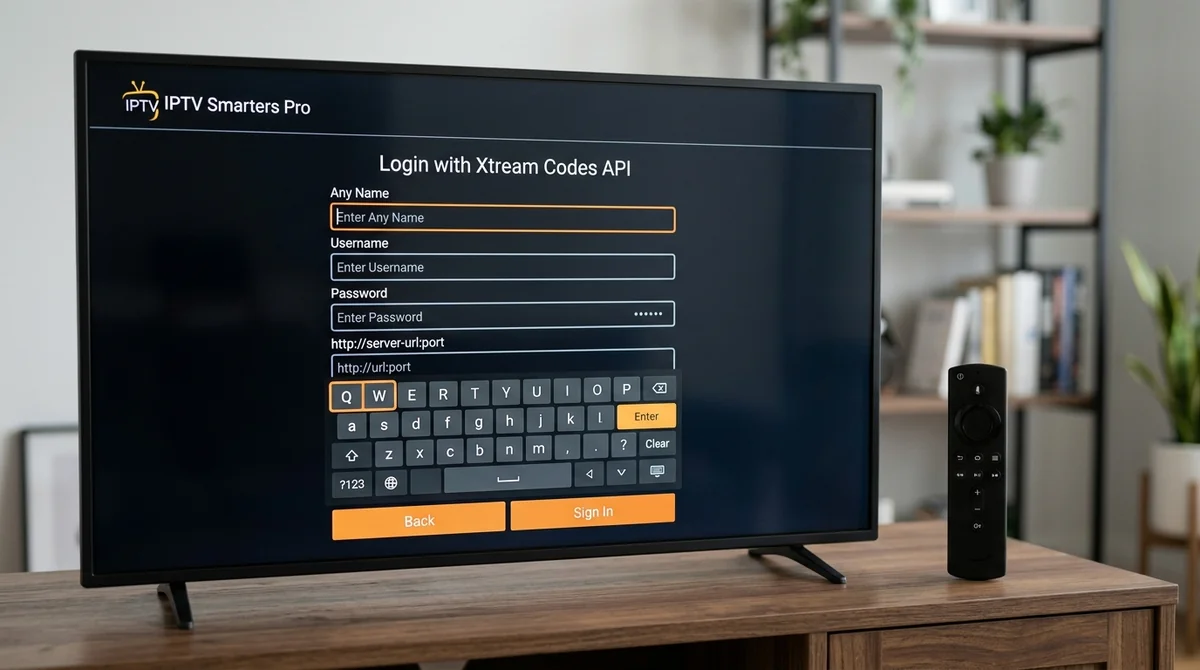
What do I enter — the three fields, explained
When you choose “Login with Xtream Codes API” (or “Add playlist → Xtream Codes”), the app asks for:
- Playlist name — type anything. “My IPTV”, your provider’s name, whatever. This is just a label inside your app; it doesn’t affect the login.
-
Server URL (sometimes labelled “portal URL” or just “URL”) — the address of your provider’s server, e.g.
http://provider.tv:8080. Type it exactly as sent:http://at the start, the port number (:8080or similar) at the end, no trailing slash added or removed. One character off and the app can’t find the server. - Username and password — case-sensitive, exactly as provided. Watch for the TV remote’s auto-capitalisation and for trailing spaces dragged along by copy-paste.
Then log in. Channels load within a minute or two; the guide takes several minutes on first sync — normal, once only. The step-by-step universal flow (including app installation) is in our the setup page.
Why do users prefer Xtream over M3U?
The “xtream codes vs m3u which should I use” debate has a consistent winner in community discussion, and the reasons are practical rather than technical:
- Shorter to enter. Three short fields beat a 200-character URL on a TV remote. This alone converts a lot of users.
- Automatic EPG. The programme guide arrives with the login — no separate XMLTV URL to find, paste and maintain. The app pulls the full guide automatically.
- Organised categories. Channels arrive sorted into groups (Sports, UK, Movies…), on-demand content arrives separated from live TV with posters and metadata. M3U can carry grouping, but Xtream delivers it reliably because the API describes the organisation explicitly.
- Catch-up without extra setup. Archive/catch-up data is exposed through the API, so rewinding programmes works out of the box in apps that support it.
- Automatic updates. Channel changes, new additions and fixes appear without you re-adding anything — the app re-asks the server every time it loads.
- Faster channel switching. Users consistently report that zapping between channels feels snappier over Xtream. The explanation that’s passed around: the app queries a paginated API for what it needs rather than re-parsing one giant text file.
None of this changes the picture quality — worth stating because it’s a persistent misconception (see below).

Does Xtream Codes work on my app?
Almost certainly yes. The Xtream API is the best-supported login method in the player ecosystem:
- TiviMate — full Xtream support, and the combination most power users run.
- IPTV Smarters Pro — built around the “Login with Xtream Codes API” flow; the beginner default.
- XCIPTV — Xtream-native, clean layout.
- OTT Navigator, Flix IPTV, IPTVX and most others — all Xtream-compatible.
The one category that doesn’t use it: dedicated MAG/Formuler boxes, which use the portal-URL + MAC method instead. And note that some smart-TV apps (notably Smart IPTV’s classic flow) are M3U-first — check the compare the apps for per-app details before committing to a login type on a specific TV.
“Invalid details” / login failed with Xtream Codes — how do I fix it?
The most common Xtream error, and the causes are almost always mundane. Work through these in order:
- Retype the server URL by hand. Don’t trust the paste. Confirm
http://is present, the port (:8080-style) matches exactly, and you haven’t added or removed a trailing slash. - Check for trailing spaces. A space copied from the end of a WhatsApp message is the single most common cause of a rejected Xtream login. Paste into a notes app, trim, re-paste.
- Defeat auto-capitalisation. TV virtual keyboards capitalise the first character of the username field. Usernames are case-sensitive — check every letter.
- Confirm the subscription is active. A login that worked yesterday and fails today usually means the sub expired, not that the credentials broke. The red “Account Expired” stamp means the account needs a provider-side reset — message your provider, it’s not an app fault.
- One stream at a time. Most plans allow a single concurrent connection; if the sub is already playing on another device, the second login can be refused.
- Right fields, right screen. Server URL + username + password go in the Xtream login screen — not the M3U screen, not the portal screen.
If you’ve verified all six and it still fails, screenshot the exact error and send it to your provider. With us that’s a WhatsApp message to +44 7877 162001 — logins get checked and reissued in the same conversation, usually within minutes.
Is Xtream Codes more stable than M3U? Does it improve picture quality?
Two related questions with one honest answer: the login method doesn’t change picture quality or stream stability. As one community write-up puts it, “the login method itself doesn’t improve picture quality” — and that’s correct. The video bits arriving at your device are identical whether the app learned the stream address from an M3U file or an Xtream API response.
What Xtream does change is everything around the picture: faster login, better organisation, automatic guide, snappier zapping. Users who say Xtream “feels more stable” are usually describing the app experience — fewer missing categories, a guide that actually populates — not the stream itself. Stability lives at the server and in your broadband connection; the how fast your internet needs to be and the fix stuttering streams cover that side.
Can I use Xtream and M3U at the same time?
Yes. Most player apps let you add multiple playlists, even mixing formats — an Xtream login for your main subscription and an M3U link for a second service, or both formats of the same subscription side by side. Some users do exactly that: Xtream as the daily driver for its organisation, M3U kept as a backup login in VLC on the laptop for travel. There’s no conflict; they’re just two doors into the same account.
How does the Xtream API actually work — the 60-second version?
You don’t need this to use it, but the users who ask “why is xtream faster than m3u” deserve the real answer. When you log in, the app doesn’t download one big file. It makes a series of small requests to the server’s API:
- Authenticate — the app sends your username and password; the server replies with your account details (expiry date, allowed connections, account status).
- Fetch the channel list — the app asks for live streams, and the server returns them paginated — in pages, with category IDs attached. The app only loads what it needs to display.
- Fetch VOD — films and series arrive as a separate request, with metadata: posters, descriptions, ratings, episode lists.
- Fetch the EPG — the app requests guide data per channel, usually in compressed XMLTV form, and caches it locally.
- Stream on demand — when you pick a channel, the app asks the API for that channel’s current stream address and plays it.
That’s why zapping feels faster: the app isn’t re-reading a 45,000-line text file every time you change channel — it’s asking a database for one record. It’s also why the guide, categories and VOD metadata all “just work”: the organisation is data the server provides, not something the app has to guess from a flat list.
One practical consequence: if your provider’s server is slow to answer API requests, the app interface feels sluggish (categories load slowly, the guide lags) even while streams themselves play fine. Sluggish menus + fine playback = slow API responses, not a slow connection. Worth knowing before you blame your broadband.

Can I use my Xtream login on multiple devices?
Yes — the same server URL, username and password work in any Xtream-compatible app on any device. Install TiviMate on the Firestick, IPTV Smarters on your phone, log in with the same three fields everywhere, and each device pulls its own channel list and guide from the server.
The constraint isn’t devices — it’s simultaneous streams. Most plans include one connection: one stream playing at a time, across all your devices. A second concurrent stream gets refused (or kicks the first one off, depending on the server). So you can have the login on five devices and watch on one — or add extra connections to the plan for the rest of the household. That’s the “two connection price” question that comes up constantly in provider comment sections: it’s not about devices, it’s about simultaneous streams. Our plan prices lists extra-connection options, and the the subscription page explains how household setups usually work.
A related gotcha: some apps cache credentials aggressively. If your provider ever reissues your login (new password after a security reset, for example), delete the old playlist entry in the app and add it fresh — editing the saved fields in place doesn’t always take.
Free Xtream Codes logins — “free xtream codes 2026” searches
You’ll see this search pattern everywhere: free server logins passed around forums and Telegram. The honest assessment: they’re shared credentials on overloaded servers, they die constantly, the guide data is usually broken, and you’re one password change away from a blank screen mid-match. As a way to evaluate the Xtream login format they work for an afternoon. As a way to watch TV, they’re the opposite of reliable.
The grown-up version of “try before you buy” is a proper trial from a real provider: our free trial offer sends you a personal Xtream login (plus the M3U link) with the full channel list, full VOD and full guide — no card, and a human on WhatsApp if the login screen fights you.
Xtream Codes vs M3U — the verdict
For most users on most devices, Xtream is the better daily login: shorter to enter, automatic guide, organised categories, catch-up out of the box. M3U keeps its crown for universality — it works in VLC, Kodi, browsers and every odd device the API doesn’t reach — and for tinkerers who want to edit their channel list as a text file.
Our position is simple: we send both with every subscription, because the right answer depends on your device and your patience with TV remotes. Whichever you pick, both logins arrive together — no extra cost, no either/or choice. Try the Xtream login first; keep the M3U link in your back pocket. The setup instructions walks through entering either one, and the M3U guide covers the format’s quirks — including getting that long link onto a TV without typing it.
Questions about which login suits your device? WhatsApp +44 7877 162001 — tell us the device and we’ll say which of the two to use and why. Or browse all our explainers.
Get Your Xtream Codes Login in 5 Minutes
Experience instant category loading, 50fps UK sports streams, and complete 7-day EPG data across your favourite player app. 24-hour free trial available.