
What Internet Speed Do You Need for IPTV?
“How much internet speed for 4k iptv” is the headline ask, and it has a short answer — about 25 Mbps of stable speed per 4K stream — wrapped in a longer truth that surprises people: stability matters more than speed. A rock-steady 30 Mbps line outperforms a spiky 200 Mbps line for live TV, every time. This page gives you the numbers, shows you how to test what you’ve actually got, and covers the UK ISP picture as users report it. If your streams are already freezing, skip to the buffering fixes — that’s the fix-it page; this is the understand-it page.
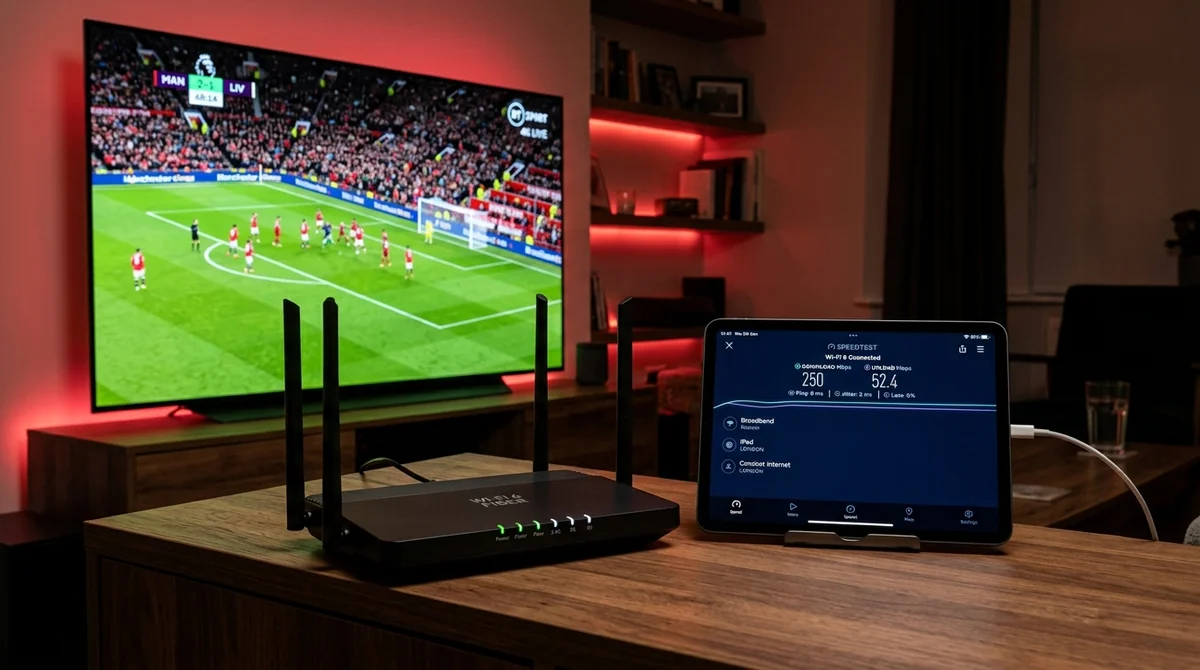
How much speed does IPTV need — the numbers per quality
The numbers the community and providers converge on, per simultaneous stream:
| Quality | Speed needed (stable) |
|---|---|
| 4K / UHD | ~25 Mbps |
| Full HD 1080p | ~10–13 Mbps |
| HD 720p | ~8 Mbps |
| SD | ~5 Mbps |
A few notes on these, because the scepticism (“does 4k really need 25 mbps”) is healthy:
- 25 Mbps for 4K is the consensus — most guides and experienced users land on 20–25. You’ll see 50 Mbps quoted on some SEO pages; that figure appears nowhere in community discussion and reads as marketing-inflated. Ignore it.
- The minimalist counter-framing has its fans: “15 meg is plenty if you have a stable connection” — and for Full HD, that’s broadly true. The number assumes stable; the stability caveat is doing the heavy lifting.
- These are per stream. Two 4K streams at once in the same house need ~50 Mbps of stable bandwidth. Add up what the household actually watches simultaneously — that’s the “does everyone streaming at once slow it down” question answered.
- These are sustained, stable speeds — not the headline number on your broadband contract. A “100 Mbps” line that dips to 12 Mbps every few minutes will buffer 4K. A steady 30 Mbps line won’t.
Why does my stream buffer when my speed test shows 100+ Mbps?
The paradox question — “I have 500 Mbps but it still buffers, why” — and it’s the most useful question on this page, because the answer reframes the whole topic.
Speed tests aren’t video traffic. A speedtest measures a burst download from a nearby server over a few seconds. A live IPTV stream is a sustained, hours-long flow from a specific server, sensitive to consistency — jitter (variation in delay), packet loss, and routing congestion along the path. Your line can blast 500 Mbps in a 10-second test and still drop packets on a 3-hour football match if the connection is unstable or the route to the streaming server congests at peak time.
As one technical write-up puts it: stable available bandwidth matters more than the advertised connection speed. You could have a 200 Mbps plan and still get buffering — because the plan number was never the number that mattered.
The other half of the paradox: Wi-Fi vs wired. That 100 Mbps speedtest was probably run on your phone, next to the router, on the 5 GHz band. The Firestick behind the TV, on 2.4 GHz through two walls, might be getting 9 Mbps with spikes. Test on the device that watches the TV — more below.
If the freezing is already happening, the the buffering guide walks through the fix order. The short version: wire the device if you can; 5 GHz if you can’t; then look at the network before blaming the provider.
Is wired Ethernet better than Wi-Fi for IPTV?
Yes — and it’s the #1 community fix for a reason. The hierarchy, as users rank it:
- Wired Ethernet (Cat6) — full speed, near-zero jitter, no interference. Firesticks need a cheap Ethernet adapter; the difference it makes on marginal connections is disproportionate to its price.
- 5 GHz Wi-Fi — fast and usually uncongested, but shorter range and worse through walls.
- 2.4 GHz Wi-Fi — longest range, slowest, most congested band in any built-up area. Fine for SD; a liability for 4K.
The honest framing: Wi-Fi works fine for IPTV when the signal is strong and stable. The problem is that “the TV is three rooms from the router on 2.4 GHz” is one of the most common real-world setups — and that’s a network problem wearing a “my IPTV buffers” costume. Before upgrading your broadband or changing provider, try the Ethernet adapter. It’s a ten-minute, few-pounds test that resolves an outsized share of complaints.
How do I test my speed properly?
“How do I test my speed — speedtest on the TV or the phone” is exactly the right question, because method matters:
- Test on the device that streams. Run the speed test on the Firestick / smart TV / box itself, not your phone. Phone-next-to-router numbers are fantasy numbers for the TV behind the wall.
- Test at match time. Run it on a Saturday at 3pm, not Tuesday morning. Peak-time congestion is the whole ballgame — a line that’s 80 Mbps at noon and 18 Mbps at kick-off tells you everything.
- Test wired vs Wi-Fi. If you can borrow an Ethernet adapter, compare. The gap tells you whether the problem is the line or the air.
- Test sustained, not burst. A single speedtest is a snapshot. Run three tests a minute apart during a live match — variation between them is the diagnosis. Steady numbers = healthy line. Wild swings = instability, whatever the average says.
- Restart the router and the device first. The oldest advice is the most skipped. A surprising number of “my IPTV is broken” reports end at a router that hadn’t been rebooted in months.
- Isolate the device. Close background apps on the streaming device, pause downloads elsewhere in the house, and re-test. If the numbers jump, the line was fine — the household was saturated.
What you’re looking for: your quality tier’s number, sustained, at peak time, on the streaming device. 25+ steady for 4K, 13+ for Full HD, 8+ for HD. Hit that and the network side is cleared — anything freezing after that is elsewhere (server, app settings, or the provider).
UK Broadband Providers for IPTV (User-Reported Characteristics)
| ISP | Network Type | User Sentiment | Key Setting / Tip |
|---|---|---|---|
| Virgin Media | DOCSIS Cable / FTTP | Highly rated for raw speeds | Disable Web Safe (Child Safe/Virus Safe) in account settings |
| BT / EE / Plusnet | Openreach FTTC / FTTP | Consistently stable | Turn off Smart Setup in Home Hub router settings |
| Sky Broadband | Openreach Wholesale | Mixed user reports | Check Sky Broadband Shield settings; keep VPN handy |
| Vodafone | CityFibre / Openreach | Frequent workarounds reported | Change DNS to 1.1.1.1 / 8.8.8.8 on device or use VPN |
| Alt-Nets (Hyperoptic, Community Fibre, Zen) | Full Fibre FTTP | Exceptional low latency | Near-zero filtering; standard plug-and-play |
Which UK ISP is best for IPTV? Do BT, Virgin or Sky block it?
The ISP question comes up constantly — “which UK ISP is best for IPTV / does BT/Virgin/Sky block IPTV” — and the honest answer starts with a caveat: there are no verified measurements of UK ISP throttling of IPTV. What exists is user anecdote and one provider-marketing article that reads as sales copy (it claims DPI-based throttling requiring “obfuscated” protocols — treat that as unverified). Everything below is user-reported, not established fact.
What UK users report, in their own words:
- Virgin Media: “No problems with virgin” is the recurring verdict — the most praised of the big ISPs for IPTV. One practical tip from users: turn off Web Safe (Virgin’s parental-control filtering), which some blame for interference — “knock the nanny settings off.”
- Vodafone: the one provider users single out negatively — “Only one to worry about is Vodafone.” Multiple users report needing workarounds on Vodafone that they don’t need elsewhere.
- Sky broadband: mixed — several users say they’d avoid Sky broadband for IPTV use (“Think I’ll avoid sky altogether”), though this is preference and anecdote, not evidence of blocking.
- BT / Plusnet / Zen: generally reported as fine — “they all work fine with a decent download speed.”
- TalkTalk: criticised for customer service rather than blocking specifically.
- The general user theory: “it’s normally the big boys that attempt to block but the smaller ones don’t so much” — opinion, not fact, but widely repeated.
On peak-time football blocking specifically: weekend blocks have historically been reported, with one user noting that of three suppliers, “one gets blocked and needs a vpn, the other two are fine.” The pattern, such as it is: intermittent, provider-specific, and usually routable-around rather than absolute.
The bottom line on ISPs: pick your broadband for speed, stability and price — the things that are actually measurable. The ISP’s stability at peak time matters far more for IPTV than any rumoured blocking. And a provider whose streams only work on one ISP isn’t a provider worth keeping.

Do I need a VPN to stop buffering?
The VPN-as-fix question — and the answer is carefully conditional: a VPN helps only if the cause is ISP interference; it does nothing for weak Wi-Fi, an unstable line, or a struggling server. “A VPN will not fix weak local Wi-Fi” is the line worth remembering.
The logic chain:
- Buffering caused by local network (weak Wi-Fi, saturated household) → VPN changes nothing. Fix the network.
- Buffering caused by ISP throttling or blocking of the stream route (user-reported, peak-time) → a VPN routes around it by hiding the traffic’s destination from the ISP. This is the one case where it helps.
- Buffering caused by the provider’s server → VPN changes nothing. Change provider.
And the reverse question — “does a VPN cause buffering” — yes, it can. Routing your stream through a distant or congested VPN server adds latency and another failure point. The community fix is a ten-second job: switch VPN server. As one user puts it: “a 10 second job of changing vpn server solves it.” Some users run a VPN set to connect automatically with their IPTV app; others keep one “on standby” for peak times. Both are reasonable; neither is required. You don’t need a VPN to use IPTV at all. If yours is about privacy rather than throttling, our guide to where UK viewers stand legally covers the actual position.
Does upload speed matter for IPTV?
Barely. IPTV is almost entirely download: the stream comes to you, and your device sends back only tiny control requests (change channel, fetch guide page). The upload figure on your broadband contract is irrelevant to picture quality — a line with 50 Mbps down and 5 Mbps up streams 4K exactly as well as a symmetric line. If a provider or forum post tells you to upgrade for more upload speed, that’s a misunderstanding. Download stability is the whole game.
The household maths: adding it all up
“Does everyone streaming at once in the house slow it down” — yes, linearly. Add up the per-stream numbers:
- One 4K match in the living room: ~25 Mbps
- Plus a Full HD film in the bedroom: ~13 Mbps
- Plus general browsing, video calls, gaming: ~10–20 Mbps headroom
A household watching one 4K stream plus normal use wants 40–50 Mbps of stable speed. Two simultaneous 4K streams: 60+. Most UK fibre packages (50–150 Mbps headline) clear this comfortably if the speed is stable and reaches the devices. The failure mode is never the headline number — it’s the Wi-Fi dead zone, the 2.4 GHz congestion, the line that halves at 8pm.
Player-side, one more lever: set the app’s buffer to 5–10 seconds. It won’t fix a genuinely inadequate connection, but it smooths over the micro-dips that a “fast but jittery” line produces — the exact profile of most UK fibre at peak time.
The honest summary
You need less speed than the marketing suggests and more stability than the contract promises: 25 Mbps steady for 4K, 13 for Full HD, 8 for HD — measured at peak time, on the streaming device, over a connection that doesn’t swing. Wire the TV box if you can, use 5 GHz if you can’t, reboot the router before you blame anyone, and treat ISP-blocking stories as anecdote until they’re measured. Get the network right and IPTV stops being a tech project. More plain-English explainers like this live in all our guides. And re-test every few months — lines degrade, households add devices, and the 25 Mbps that was comfortable last year can feel tight once the kids are streaming too.
Then prove it on your own line: the free 24-hour trial gives you the full service — 4K streams, full guide, VOD — to test at Saturday 3pm, the only test that counts. If it buffers, our buffering walkthrough walks the fix order, and WhatsApp support at +44 7877 162001 will help you read your own speed results. No card, no commitment — just your broadband, honestly measured.
Test Your Broadband with Our Free 24h Pass
See how your Virgin, BT, Sky, or Vodafone connection handles 50fps UK sports and 4K entertainment. Instant WhatsApp delivery within 5 minutes.