
IPTV on Windows & Mac — the Desktop Players Guide
Desktops are the underrated IPTV platform: the biggest screen you own for free, the easiest place to troubleshoot, and the only platform where every player is free. The trade-off is interface — nothing on desktop matches TiviMate’s TV grid, and the most popular option (VLC) doesn’t do programme guides at all. This page covers which desktop player fits how you watch, setup for each, the Mac-specific situation, and why the desktop is the best place in the house to run VPN tests. Mobile viewing is on the iPhone/iPad page; every other device is on the which devices work.
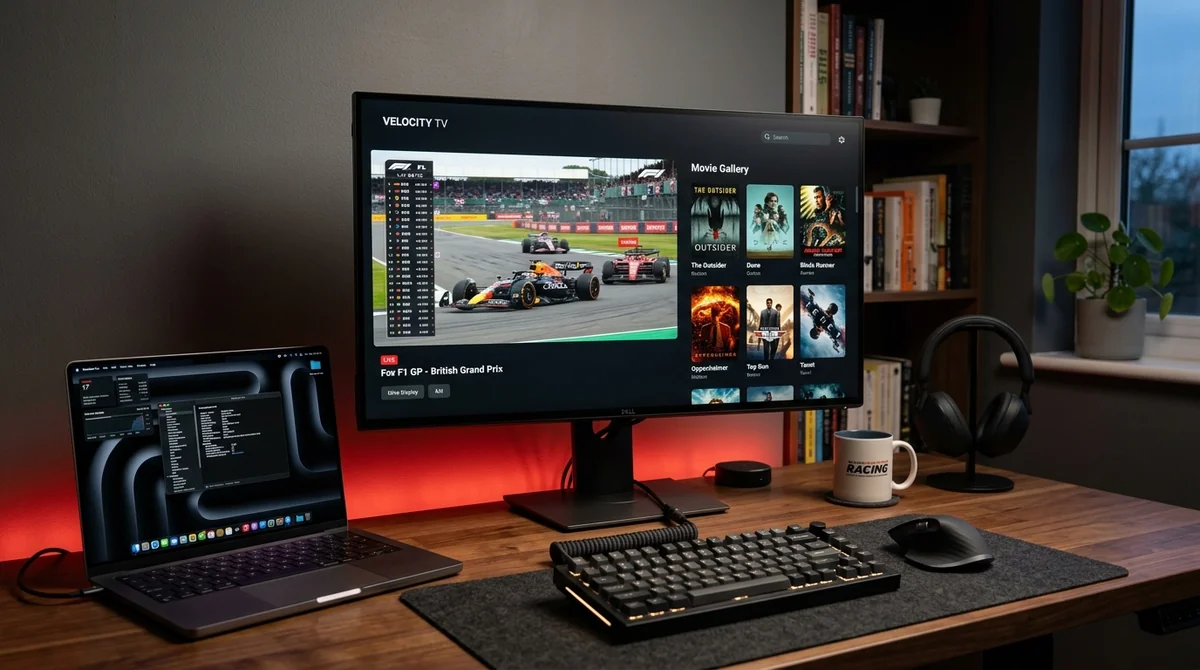
Can You Use VLC for IPTV?
Yes — and it’s the community’s universal answer for a reason: VLC is free, open source, runs on everything, and plays almost any stream you throw at it. It’s the perfect tool for one job: testing. New subscription? Paste the M3U into VLC and you’ve confirmed the login works in thirty seconds.
But here’s the warning every thread repeats: VLC gives you no EPG, no channel guide, no favourites, no recording. “VLC will give me a TV guide like TiviMate” is the misconception to kill — it won’t. You get a flat playlist and that’s it. Fine for a quick check or background viewing while you work; miserable as a daily TV interface. If you want the guide, read on.
VLC setup: Install VLC → Media → Open Network Stream (or just open the .m3u file/URL directly) → paste your M3U URL → the playlist appears in the Playlist panel. Done.
Pro Tip for VLC Stability: To prevent micro-buffering during high-bitrate 50fps UK football broadcasts, navigate to Tools → Preferences → Show Settings: All → Input / Codecs and increase the Network caching (ms) from the default 300ms to 1000ms. This allocates an extra 1-second local memory buffer that smooths out ISP packet jitter without adding perceptible latency.
The Best IPTV Players for Windows
Ranked by how the community actually uses them:
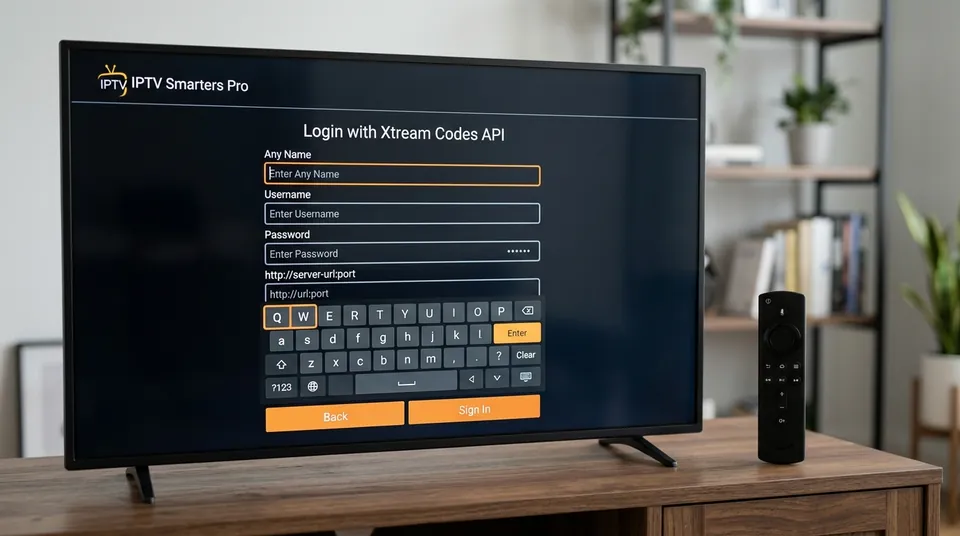
- IPTV Smarters Pro (desktop) — the closest thing to the Firestick experience on a PC. Official Windows downloads from the app’s own site, Xtream Codes login, proper Live TV / Movies / Series tabs, full EPG. The daily-driver pick for most Windows users. Our Smarters walkthrough covers the family. Safety note the forums stress: download it from the official source only — “IPTV Smarters for PC” from random download sites is how people get burned.
- Kodi + IPTV Simple Client (PVR) — the customiser’s pick. Install Kodi, enable the PVR IPTV Simple Client addon, point it at your M3U and XMLTV EPG URLs, and you get a proper TV guide with recording. Heavier setup, best payoff for tinkerers.
- VLC — the fallback and tester, per above. Great for quick playback, not a daily driver.
- Browser players — IPTV Smarters’ web player runs in any browser with no install. Handy on locked-down work machines or when you just want a match in a tab. Our M3U playlist basics explains the playlist mechanics behind these.
Skip the exotic multi-OS players that surface in roundup listicles (Megacubo and friends) — community endorsement is thin, and the three above cover every real use case.
Desktop IPTV Players Comparison Matrix
| Player | OS Support | EPG Grid | Xtream Codes | Local Recording | Best Use Case |
|---|---|---|---|---|---|
| IPTV Smarters Pro | Windows & Mac | Yes (Full Tabs) | Native | Catch-up only | Daily desktop TV viewer |
| Kodi (PVR Simple) | Windows, Mac, Linux | Yes (Sky-style) | Via M3U/XMLTV | Yes (Drive PVR) | Power users & recording |
| VLC Media Player | All Platforms | No (Flat List) | M3U URL only | Manual dump | Fast testing & diagnostics |
| SNPlayer | Apple Silicon Mac | Yes (Modern Grid) | Native | Catch-up only | Mac M1-M4 daily driver |
| Web Browser Player | Any Browser | Basic List | Web Portal | No | Work PCs & zero-install |
The Best IPTV Players for Mac
Mac splits by chip, and it matters:
- Apple Silicon (M1/M2/M3/M4): SNPlayer runs natively (macOS 14 Sonoma and later) — the same excellent free player iOS users rate, now on desktop, with full EPG. GSE Smart IPTV has a separate Mac App Store listing. Either is a genuine daily driver, and both sync sensibly with the iPhone/iPad versions — see our iOS setup guide.
- Intel / older Macs: VLC (universal, free) or Kodi + IPTV Simple Client for the full guide experience. Both run fine on Intel.
- IPTV Smarters has official Mac downloads too — same Xtream Codes simplicity as Windows.
The short version: Apple Silicon owners get the best Mac IPTV experience there’s ever been, essentially for free. Intel owners use the same stack Windows users do.
TiviMate on Windows? The Emulator Question
“TiviMate on Windows” comes up because TiviMate owners want their interface everywhere. The technical answer: there’s no native Windows version — only Android-emulator workarounds (BlueStacks and the like). The honest community answer: don’t. Emulator endorsement is thin, performance is mediocre, and you’re emulating an entire phone OS to run a TV interface on a monitor. Use Smarters or Kodi natively instead — they’re built for the platform and do the same job better. This page won’t give the emulator route a step-by-step because the community doesn’t recommend it as a primary path.
Why Emulators Stumble on Matchday: Android emulators introduce virtualization overhead that disables hardware-accelerated video rendering pipelines. While an Amazon Firestick 4K Max or modern PC CPU decodes HEVC 50fps streams effortlessly, an emulator running a virtualized Android layer frequently drops frames, causes 300ms audio de-sync, and spikes CPU fan noise. Native desktop software avoids all virtualization penalties.
Kodi + IPTV Simple Client: The Full Setup
For the tinkerers — the ones who want a real PVR with recording on desktop — this is the route:
- Install Kodi (Windows or Mac).
- Go to Add-ons → My Add-ons → PVR Clients → enable PVR IPTV Simple Client.
- Configure it: paste your M3U playlist URL and your XMLTV EPG URL (both come with your subscription).
- Restart Kodi — Live TV appears in the main menu with a full programme guide.
It’s the heaviest setup on this page and the most capable: proper EPG, favourites, and recording to disk. If that sounds like effort, Smarters gives you 90% of it with a five-minute login. Your subscription includes both M3U and EPG URLs — with us they arrive on WhatsApp within minutes of the free trial signup — and our EPG guide explains the guide mechanics.
The No-Install Option: IPTV in Your Browser
Worth a full section because people forget it exists: you can watch IPTV in a browser with nothing installed. IPTV Smarters’ web player runs in Chrome, Edge, Firefox, or Safari — log in with your Xtream Codes details and you’re watching. VLC can open an M3U URL directly too, though without a guide.
When is the browser the right choice? Locked-down machines where you can’t install software (work laptops, library PCs), a quick check that your login works before setting up the TV, or a second screen while the main TV is occupied. It’s not a daily driver — no proper EPG layout, no favourites sync, and browsers are fussier about stream formats than dedicated players — but as a zero-commitment way to verify everything works, it’s unbeatable. Our M3U setup guide explains the playlist mechanics if you’re curious what’s happening under the hood.
Can You Record IPTV on a PC?
Yes — more easily than anywhere else, because you have the disk space. Kodi’s PVR recording is the proper route: schedule from the guide, save to your drive. TiviMate-via-emulator DVR exists but inherits all the emulator caveats above — skip it.
The honest caveat, same as everywhere: recordings are only as stable as the stream while recording. For most people, provider-side catch-up beats recording — scroll back in the guide, press play, no disk management. Every plan we sell includes 7-day catch-up; the plan lineup have the details.
The Desktop Is the Best Place to Run VPN Tests
This is the desktop’s secret superpower and the reason it deserves a section: troubleshooting is easiest on a PC. Speed tests, server switching, protocol changes (WireGuard vs OpenVPN vs IKEv2 — wrong protocol choices are a cited cause of black screens), the hotspot test, DNS-only tests — all trivial on desktop, fiddly on a TV remote.
The community’s diagnostic sequence, easiest run from a laptop:
- Hotspot test — tether to mobile data. Clean? The problem is your ISP’s path, not the provider.
- DNS-only change — rules out ISP DNS interference without VPN overhead.
- Full VPN, then VPN-off — the standard on/off comparison. VPNs fix throttling but can cause buffering through latency or blocked IPs.
The same split exists as everywhere — a “VPN always on for privacy” camp versus a “VPN halved my speed” camp. Desktop lets you settle it with data in ten minutes. Once you know the answer, apply it to the TV devices: our Fire TV Stick guide and other smart TVs cover the per-OS VPN situation.
Why Desktop Diagnostics Are Faster Than Any TV
On Windows PowerShell or macOS Terminal, you can run a ping -t [server] or traceroute in seconds to identify packet loss before a match kicks off. If Virgin Media, BT, or Sky begins active packet-shaping around 2:45pm on Saturday, your PC task manager will show traffic degradation instantly. Switching protocols to WireGuard (UDP port 51820) immediately restores full line speed and eliminates 3pm ISP filters.
“How Do I Open an M3U Playlist on PC?”
The beginner question behind half the Windows threads, answered plainly: an M3U playlist is just a text file full of stream URLs. VLC: Media → Open Network Stream → paste the URL. Smarters: use Xtream Codes login instead (simpler). Kodi: PVR IPTV Simple Client, per above. Browser: paste it into a web player. Our M3U playlist walkthrough explains what the file actually contains, and our IPTV setup guide covers the general principles.
One more safety repeat because it matters on desktop most of all: only download players from official sources. The community warning — “never download APKs from random sites” — applies equally to Windows .exe files from random download portals.
Windows/Mac IPTV FAQs
Which is better on PC: VLC or IPTV Smarters?
Different jobs. VLC for quick testing and background viewing; Smarters for daily watching with a proper guide. Install both — they’re free.
Does my subscription work on desktop and TV with one login?
Yes — your Xtream Codes/M3U login works on every device. One connection means one simultaneous stream, so desktop or TV at a time on the base plan; extra connections are available. See what each plan includes.
My streams play on my phone but show black on PC — why?
The classic cause is VPN protocol mismatch on desktop (try WireGuard, then OpenVPN), or a VPN IP the provider blocks — run the VPN-off test first. If it’s not the VPN, our streams-not-working page walks through the rest.
Ready to Test IPTV on Your Desktop?
Test it on your desktop first — it’s the fastest trial you’ll run. Message +44 7877 162001 on WhatsApp, say Windows or Mac, and we’ll send your login plus the M3U/EPG URLs. Try the full 24-hour free trial on the big screen before you touch the TV. No card, no commitment.