
IPTV Smarters Pro — Setup Guide & Login Failed Fixes
IPTV Smarters Pro is the app most beginners end up with, and for good reason: the login screen is simple, the layout is clean, and it works on just about everything — Firestick, Android, Samsung TVs, Windows, Mac, and (with caveats) iPhones. In community “best app” threads it consistently lands second, right behind TiviMate, with the tagline “easy for beginners.” The flip side: “login failed” is the single biggest IPTV support topic on the internet, and most of it lands on Smarters. This page covers setup, the login errors, and the fixes — without the confusion.
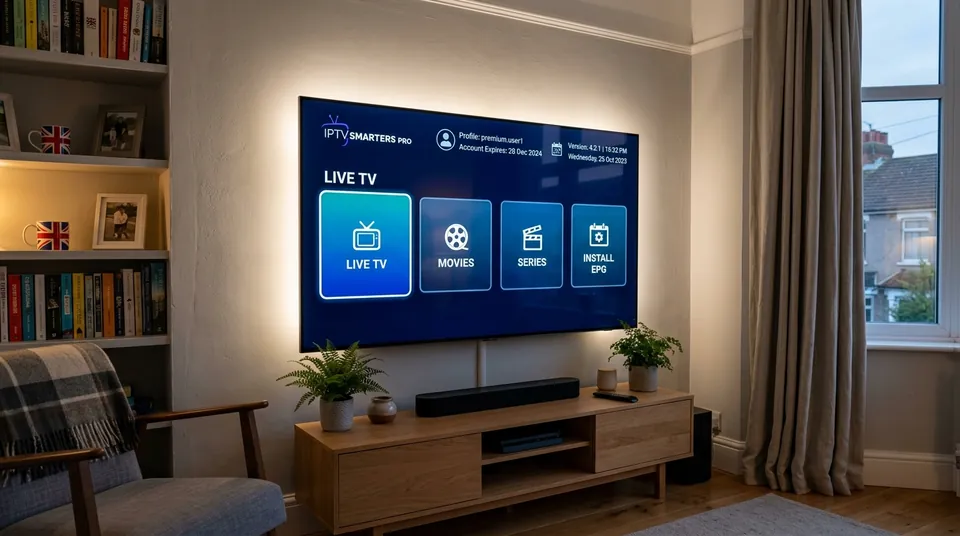 Live TV • VOD Movies • Series • Catch-Up TV
Is IPTV Smarters Pro a provider? Do I get channels with it?
No — and this is the single most-corrected misconception in the IPTV world. IPTV Smarters Pro is a player only. It ships with zero channels. Install it, open it, and you get a login screen and an empty dashboard. That empty screen isn’t a bug — it means you haven’t given the app any credentials yet.
Channels come from a separate IPTV subscription with a provider, which is what gives you the username, password and server URL you type into Smarters. Be especially careful here: scammy websites sell “IPTV Smarters Pro subscriptions.” There is no such product — the app itself is free, and what those sites are actually selling is a provider login dressed up as an app subscription. Multiple guides flag this as a misnomer explicitly. If you want the real thing, get the player free from a proper source and buy your channel subscription separately — like an IPTV UK subscription, which works in Smarters and every player on our apps hub.
The Crucial Difference: Player vs Content Provider
📱 IPTV Smarters Pro (The Player)
- Application software installed on your hardware (Firestick, Android, Samsung, LG).
- Zero pre-loaded TV streams, sports channels, or on-demand content.
- Provides the graphical interface, video decoder, EPG grid, and search tools.
- Completely free to use; created by developer WHMCS SMARTERS.
🛰️ IPTV UK Subscription (The Content Feed)
- The dedicated streaming server delivering live broadcast signals to your device.
- Supplies 45,000+ live channels, 50fps UK sports, Premier League feeds, and 4K VOD.
- Generates your personal Xtream Codes API login (Username, Password, Server URL).
- Purchased on flexible monthly or annual passes with UK WhatsApp technical support.
Should I use Xtream Codes API or M3U URL in Smarters?
Choose “Login with Xtream Codes API.” Every time. This is the most consistent piece of setup advice across all player apps, and the reasons are practical:
- Dynamic categories: Xtream login auto-sorts your channels into groups (Sports, UK, Movies…) instead of one endless list.
- Automatic EPG: the TV guide populates itself — no separate guide URL to find and paste.
- Less work for your device: an M3U playlist is a giant text file your stick has to download and parse. On a big channel list that means slow loads, sluggish scrolling, and sometimes crashes. Xtream lets the server do the heavy lifting.
Our Xtream Codes guide and M3U playlist guide go deeper. The setup itself takes two minutes:
- Open Smarters → Login with Xtream Codes API.
- Enter any name for the profile (e.g. “Living Room IPTV”), then your username, password and server URL exactly as your provider sent them.
- Match the protocol (http vs https) and include the port number if there is one (the
:8080-style bit). No trailing slash at the end. - Watch for the on-screen keyboard adding a trailing space or capitalising the first letter — Firestick virtual remotes do this constantly, and it’s the number-one cause of the “login failed” errors below.
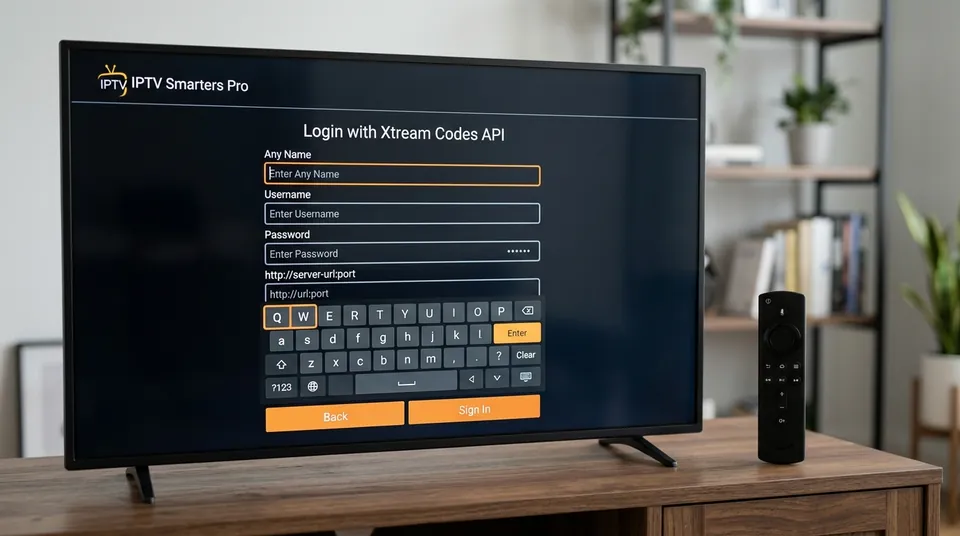 Server URL:Port • Zero M3U Lag
IPTV Smarters says “login failed” / “invalid details” — what’s wrong?
This is the biggest IPTV support topic there is, and the answer is reassuring: it’s almost never the app’s fault. “Invalid details” and “Authorization failed for above host” nearly always mean one of these, in rough order of likelihood:
1. A typo or trailing space (80% of all cases)
The single most common cause. Delete the saved profile, retype everything slowly, and check for a space at the end of the username or password. Firestick and smart TV keyboards are typo factories that automatically insert spaces after predictive words.
2. Wrong protocol or missing port
If your provider’s server URL is http://...:8080 and you typed https:// or dropped the :8080, the login fails. Copy it character for character. Ensure there is never a trailing forward slash (/) at the end of the port.
3. Expired subscription or connection limit clash
If your line allows one simultaneous stream and someone at home is already watching on a bedroom TV or mobile, the second login attempt fails immediately. Check whether your plan has expired or if another family member is currently active.
4. Your network is filtering the connection
A quick isolation test: try logging in on your phone’s mobile 4G/5G personal hotspot. If it connects instantly there but fails on home Wi-Fi, the issue is your broadband router security (BT Smart Setup, Virgin Web Safe, Sky Broadband Shield) or ISP DNS — not the app and not the provider.
5. Provider-side server maintenance or migration
Rare, but it happens. If nothing else changed on your network and it worked perfectly yesterday, ask your provider before modifying your hardware or reinstalling software.
What doesn’t fix a login failure: reinstalling the app. Guides are explicit about this — reinstalling won’t resurrect expired credentials, fix a wrong password, or bring a dead provider back. Fix the details, not the install.
I have the correct username and password — why won’t it log in?
If you’re certain the details are right, the remaining suspects are: an expired subscription, too many simultaneous connections for your plan, a provider server issue, or your network blocking the connection. Contact your provider first — with us, that’s a WhatsApp message and we check your line status while you wait. Nine times out of ten on our side it’s an expired line or a connection-limit clash, both fixed in minutes. If the line is fine and it still won’t log in, the IPTV not working guide walks through the network-side checks.
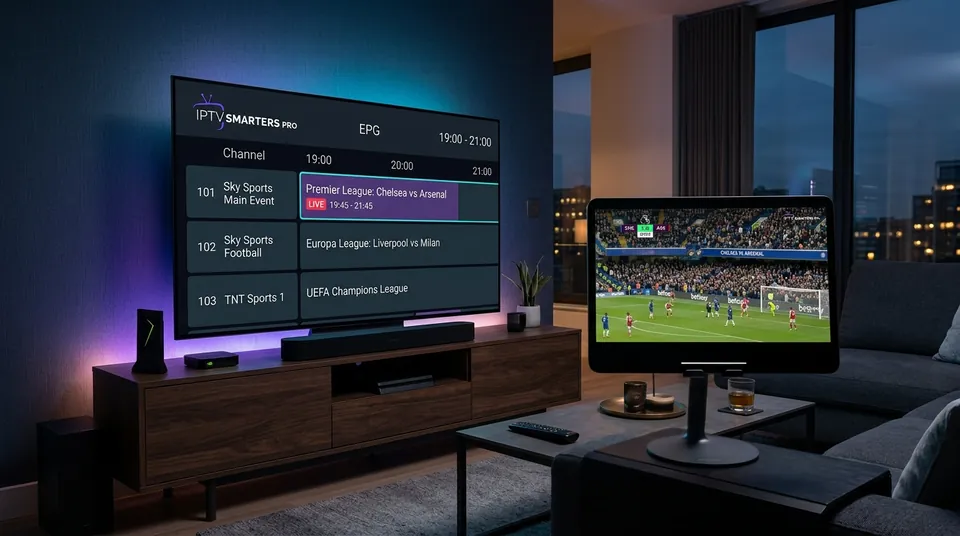 Crystal 50FPS Sports • Subtitles & Audio Tracks
My EPG guide is empty in Smarters — how do I fix it?
An empty or missing TV guide in Smarters almost always traces back to one of three things:
- You logged in with M3U instead of Xtream. M3U logins don’t auto-load a guide. Switch to the Xtream Codes login (above) and the EPG usually appears on its own.
- The EPG hasn’t been installed yet. On the dashboard, hit “Install EPG”, or go to Settings → EPG → Refresh EPG, then give it a few minutes on a large channel list.
- Wrong times, not missing data. If the guide loads but every programme is hours off, check your device’s clock and timezone — or use the EPG Time Shift slider in settings to nudge the guide until it lines up with real time.
If the guide was working and suddenly vanished, refresh it before doing anything drastic. Provider guide feeds get regenerated regularly, and a manual refresh re-pulls the current one.
VOD works but live TV buffers (or the reverse) — fix
This split behaviour is actually a useful diagnostic clue. When films play fine but live channels stutter — or vice versa — the app is working and your login is working; the issue is how the stream is being delivered or decoded. Try these in order:
1. Switch the stream format: MPEGTS vs HLS
In settings, toggle between MPEGTS and HLS. One format’s pipeline suits some networks and providers better than the other, and this single switch fixes a surprising number of buffering reports. MPEGTS has lower latency for live UK sports, while HLS segments streams into adaptive HTTP chunks that bypass aggressive router firewalls.
2. Clear the in-app cache
Smarters has its own dedicated cache clear in settings — use that before touching the device-level Firestick or Android TV storage. Over weeks of streaming, thumbnail caching can clog RAM on low-spec streaming sticks.
3. Try an external player (VLC or MX Player)
Smarters lets you hand playback to VLC or MX Player, which have better hardware decoding on some devices. Go to Settings → Player Selection → Change Live TV from “Built-in Player” to “VLC Player”. If the external player plays silky smooth, the issue was Smarters’ internal player codec, not your broadband connection.
4. Rule out the network properly
Our buffering troubleshooter covers the home-network side — most buffering lives there, not in the app. Testing over Wi-Fi vs Ethernet, switching router DNS to Cloudflare (1.1.1.1), and checking for ISP throttling during peak football fixtures will pinpoint the bottleneck.
Remember the golden rule from the TiviMate crowd too: no player app, free or paid, can fix buffering that comes from the provider’s servers or your ISP. Apps play streams; they don’t create bandwidth.
Which version is the real IPTV Smarters Pro? (Mod APK confusion)
Search for the Smarters APK and you’ll find a zoo: “IPTV Smarters Pro,” “Smarters Player Lite,” reskinned clones, “mod SAP” versions, and provider-white-labelled copies with someone else’s logo on the same app. This is the most confusing app landscape of any player here, and it’s deliberate — providers reskin Smarters with their own branding, which is why users blame “Smarters” for what is actually their provider’s buffering.
Practical advice: download from the official app stores where available (Google Play, Apple App Store) rather than random APK sites, and avoid “mod” or “premium unlocked” APKs from forums — they’re the most common vector for junk bundled into the installer. The core app is free, so any site charging you for “the full version” is selling you something that doesn’t exist. The app itself has no paid tier — user reports are consistent that there’s no subscription for the player, despite what reseller sites imply.
⚠️ Warning on Third-Party “Modded” APK Downloads
Unofficial APK download websites frequently tamper with Smarters installers to inject hidden analytics, ad scrapers, or botnet payloads into Android devices. When installing on an Amazon Firestick via the Downloader app, always verify the source URL or use verified developer download codes. Never install an APK that requests system administrator or SMS permissions.
Do I need to pay for IPTV Smarters Pro?
No. The player is free. This keeps coming up because reseller sites sell “Smarters subscriptions,” but as covered above, those are provider logins wearing an app’s name. You pay for the app: nothing. You pay for the channels: that’s your IPTV subscription, a separate purchase. If anyone tries to charge you for the Smarters app itself, walk away.
The one cost users do report: ads. The free app shows ads, and that’s the trade-off for it being free. They’re the top-listed con in app comparison tables. If ads bother you, that’s one of the honest reasons people graduate to TiviMate — its paid tier removes them.
| Feature | IPTV Smarters Pro | TiviMate IPTV Player |
|---|---|---|
| Software Cost | 100% Free | Free tier / £9/yr (or £34 lifetime) |
| Banner Ads | Yes (bottom/interstitial banners) | Zero Ads (on Premium) |
| Learning Curve | Very Simple (Zero setup learning) | Moderate (Extensive customization) |
| Multi-Screen (4-Way) | Basic 4-Screen Split | Advanced 9-Screen Multi-View |
| Platform Support | Firestick, Android, Samsung, LG, PC, iOS | Android TV & Firestick only |
App crashes on startup — fix
Occasional Smarters crashes are a known complaint, and the fix ladder is short:
- Clear the in-app cache first — this resolves most crash-on-launch cases where a corrupted EPG file causes the XML parser to choke on startup.
- Force stop the app and reopen it. On Firestick: Settings → Applications → Manage Installed Applications → IPTV Smarters Pro → Force Stop.
- Check for an app update — older builds crash on newer Firestick/Android TV firmware updates because of outdated ExoPlayer library dependencies.
- Reinstall as a last resort. Unlike login failures, crashes genuinely can be a corrupt install, so reinstalling is legitimate here. You’ll need to re-enter your login details afterwards, so have them handy.
Smarters on iPhone — is there an iOS version?
The iOS picture is thin and contradictory. Some guides say there’s no true 1:1 iOS version of Smarters Pro and point to “Smarters Player Lite” as the alternative; others list iOS support in compatibility tables. Treat the App Store listing you find with mild scepticism and check it’s the genuine article before logging in with your credentials. For iPhone and iPad users who want a smoother path, our iPhone & iPad setup page covers what actually works on iOS — and our logins work in whichever legitimate player you choose.
If you download Smarters Player Lite from the official Apple App Store, the login procedure remains identical: select “Login with Xtream Codes API”, input your credentials, and sync your channels. iOS sandboxing prevents app modifications, ensuring you get the authentic developer release.
Get set up on WhatsApp in minutes
Smarters is the easiest first app for a reason — and with the right login details typed in correctly the first time, you’ll skip every error on this page. Message us on WhatsApp and we’ll send your Xtream Codes login plus the recommended settings for your device, whether that’s a Firestick, a Samsung TV or your phone. Your first 24 hours are free, no card: enough time to confirm the login works, the EPG loads, and the football doesn’t buffer. If you’re comparing players first, the IPTV apps hub lines them all up side by side.