
IPTV on Firestick — Setup, Best Apps & the 2026 Vega Warning
The Firestick is still the UK’s most popular way to watch IPTV, and for good reason: it’s cheap, it hides behind the telly, and the best IPTV apps run on it natively. But 2026 brought a trap that catches buyers every week — Amazon’s newest sticks can’t sideload at all. This page is the complete Firestick playbook: which models are safe, how setup actually works, which apps the community rates, and why 4K football buffers even when your speed test says everything’s fine.
For everything this page doesn’t cover — comparing the apps themselves in depth, the tech behind the login, or what else you can watch — the every supported device links you to each device’s own guide.
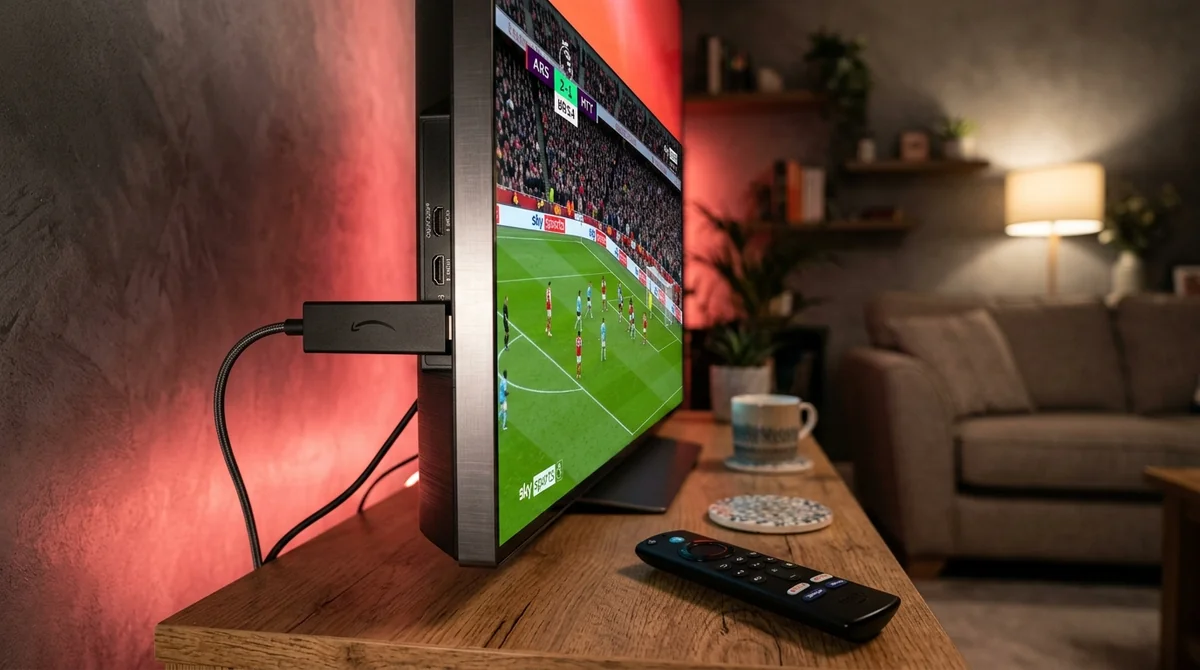 Downloader & Unknown Sources • Zero Rooting Needed
Do You Need to Jailbreak a Firestick for IPTV?
No. This is the single most repeated misconception in every IPTV forum, so let’s kill it first: you do not need to jailbreak or root a Firestick to watch IPTV. Jailbreaking is a legacy phone term that doesn’t apply here.
All you’re doing is flipping one toggle — “Apps from Unknown Sources” — so you can install a player app from outside the Amazon Appstore. On newer Fire OS versions, Amazon hides the Developer Options menu; click through to Settings > My Fire TV > About, then click the build/version line several times until it tells you you’re a developer. The menu reappears.
If your stick is a Fire OS model (see the next section — this matters enormously now), that’s the whole “jailbreak.” Two toggles, no warranty voided, no sketchy firmware.
Fire OS vs Vega OS: The Check That Decides Everything in 2026
This is the most important section on this page, because buying the wrong stick in 2026 means a Firestick that can never run IPTV apps.
Amazon quietly moved new Fire TV hardware to Vega OS, a Linux-based system that looks like Fire TV but cannot sideload anything: no “Apps from Unknown Sources” toggle, no APK support, no Downloader, no TiviMate. The affected models so far:
- Fire TV Stick 4K Select (Oct 2025) — Vega, avoid for IPTV
- 2nd-gen Fire TV Stick HD (2026) — Vega, avoid
- 3rd-gen Fire TV Stick 4K (2026) — Vega, avoid
Amazon doesn’t advertise which models run Vega on product pages — the community figured out the check instead: go to Settings > My Fire TV > About. If the software version starts with 1.x or 2.x, it’s Vega. Fire OS versions look like 7.x.
Safe Fire OS models (sideloading works as normal): 1st-gen Fire TV Stick HD, Fire TV Stick 4K Plus, Fire TV Stick 4K Max, Fire TV Cube, and TVs with Fire TV built in. The community consensus is blunt: buying the newest or cheapest stick without checking the model is the critical 2026 pitfall.
Two more wrinkles worth knowing:
- A Fire OS settings bug in September 2026 briefly emptied the “Install unknown apps” list on older sticks and caused a genuine panic that Amazon was killing sideloading. Amazon confirmed it was a bug and fixed it. If you see fresh threads asking “did Amazon block sideloading,” that’s the hangover.
- Amazon has started blocking some known piracy apps on Fire OS too. Legal IPTV players loaded with your own playlist aren’t the stated target — but the list keeps changing, so install player apps from their official sources only, never random APK sites.
Got a Vega stick already? Ignore any YouTube video claiming a workaround — Vega’s developer mode only installs Vega-native apps, not APKs. Your realistic options are swapping it for a Fire OS model or moving to a different device entirely — the Android TV guide covers sticks and boxes where TiviMate installs straight from the Play Store.
How to Set Up IPTV on a Firestick (the Actual Steps)
On a Fire OS model, the community’s standard routine looks like this:
- Enable unknown sources. Settings > My Fire TV > Developer Options > turn on “Apps from Unknown Sources” (unhide it via the About screen if needed, per above).
- Install Downloader. It’s in the Amazon Appstore — the orange-down-arrow icon.
- Enter the app’s URL or short code in Downloader. The community expects short numeric codes, not long URLs typed with a remote. Use the official source for whichever player you’re installing.
- Install and open the player, then add your provider via Xtream Codes login — username, password, and server URL. Forum veterans overwhelmingly recommend Xtream Codes over M3U for beginners: “simpler and more reliable.”
- Wait. The first load pulls down the channel list and the EPG, which takes a few minutes on a 45,000-channel lineup. Don’t judge anything until it’s finished, then set your favourites.
That covers the mechanics. If the terms in step 4 mean nothing yet — Xtream Codes API, M3U URL, what an EPG actually does — our Xtream Codes login guide explains the technology plainly, and the M3U URL guide covers the alternative route. You’ll get both sets of credentials with your subscription; the 24-hour free trial is the sensible way to test the whole thing before paying.
Which Is the Best IPTV App for Firestick 4K Max?
The community has a clear hierarchy here, and it barely moved across all of 2026:
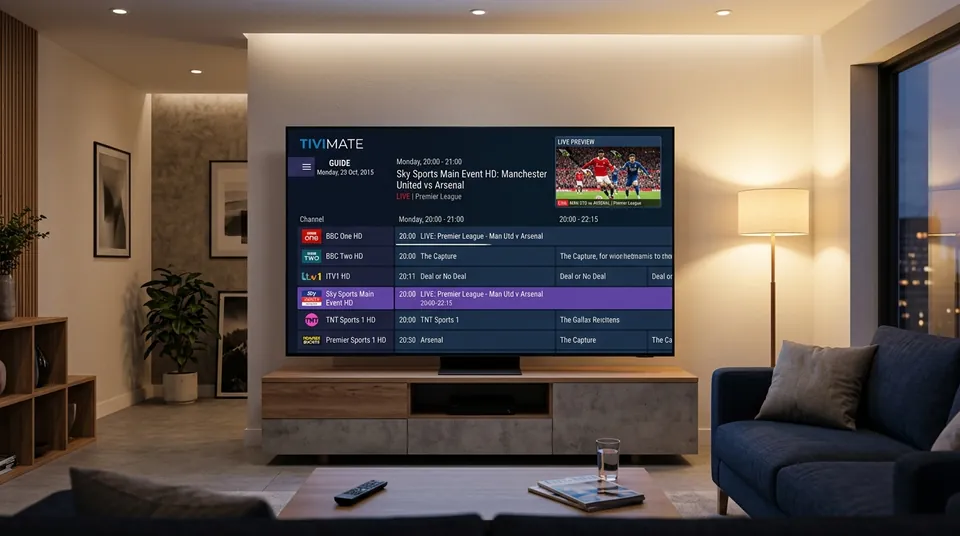 Xtream Codes API • Full UK EPG & Catch-Up Guide
- TiviMate Premium — the unanimous pick. Fastest channel switching (“zapping”), the best EPG layout of any player, and proper catch-up integration. Premium costs roughly $5 a year or a one-off lifetime payment in the $15–$45 range — the forum line is “worth every penny.” Read our full TiviMate review before deciding.
- IPTV Smarters Pro — the best free option and the easiest for beginners. Simple Xtream Codes login, clean layout. Some forks ship with ads — get the official build. Full breakdown in our IPTV Smarters Pro guide.
- XCIPTV — lightweight, stable on older and Lite sticks, and supports multiple accounts. Our XCIPTV page covers it.
- OTT Navigator — arguably the best catch-up experience (up to 14 days), but with a learning curve that puts off newcomers.
- Perfect Player — tiny footprint, a lifesaver on underpowered Lite sticks.
The thread title that starts half these debates — “tivimate premium worth it?” — gets the same answer every time: if you watch daily, yes. The free version is already better than most alternatives; premium unlocks catch-up, recording, and multi-view.
Firestick 4K Max vs Lite vs 4K — Is the Max Worth It?
For IPTV specifically, the honest answer: the Max earns its price, but mostly for the networking, not the speed. The 4K Max has better Wi-Fi radios than the Lite, which matters more for streaming than raw processing power — the most common buffering complaints come from Lite owners on crowded Wi-Fi.
That said, a standard 4K stick handles TiviMate perfectly well. Don’t buy the Max for a spec-sheet reason; buy it if you’re on Wi-Fi and want the best shot at stable 4K. And whichever you buy — check it’s a Fire OS model, per the Vega section. A 4K Max from the current lineup is safe; a brand-new “4K Select” or latest HD stick is not.
Why Your Firestick Buffers on 4K Football Even Though the Speed Test Says 100 Mbps
This is the most-asked Firestick question in every community, word for word: “my firestick buffers on 4K football but speed test says 100mbps — why.” The community’s answer is equally consistent: Wi-Fi jitter, not top speed. A speed test measures a moment; a football match needs two uninterrupted hours.
 Wired Ethernet Tested • ISP Throttling Diagnostics
The fix order the forums swear by — try these in sequence before blaming the provider:
- Go wired. Amazon’s official Ethernet adapter caps at 100 Mbps, which is “plenty for streaming and IPTV” in the community’s exact words. Real-world reports are striking: wired connections fixed 4K buffering even though speed-test numbers barely moved. It’s consistency, not speed. (Third-party gigabit adapters exist but the stick’s micro-USB 2.0 port bottlenecks them.)
- Use 5 GHz Wi-Fi or move a mesh node into the same room as the stick.
- Clear the app’s cache (Settings > Applications > Manage Installed Applications).
- Test 1080p against 4K — 4K needs ~25 Mbps of stable speed; Full HD needs ~13.
- Run the VPN-off test (see below).
- Only then look at the provider.
Two mistakes that waste hours: running the speed test on your phone instead of the stick (test on the device — what the router sees and what the stick behind the TV gets are different things), and skipping straight to “my provider is rubbish.” Most buffering is the home network. If you’ve worked the list and it still stutters, our buffering solutions goes deeper, and our what speed you need explains what your line can actually carry.
Downloader Codes and APK Safety
One short section because it comes up constantly: only install player apps from their official sources. “Never download APKs from random sites” is the standing community warning — repackaged APKs are the main way Firesticks pick up junk. If a guide gives you a Downloader code, fine — but cross-check it against the app’s official site or our IPTV apps compared first. The five minutes of caution beats a factory reset.
Should the VPN Be On or Off on a Firestick?
The community is genuinely split, but the test protocol isn’t:
- VPN fixes it: if turning a VPN on makes buffering disappear, your ISP was throttling streaming traffic at peak times (BT, Sky, Virgin Media and TalkTalk all do this to match-time traffic). Leave it on.
- VPN causes it: if turning the VPN off makes channels play fine, the VPN itself was the problem — extra latency, a distant server, or a VPN IP your provider blocks. “Turn the VPN off and see if channels play fine. If they do, problem is VPN” is near-verbatim forum advice.
Don’t assume — test. The community’s full diagnostic is: hotspot test (mobile data bypasses your ISP’s path entirely), then a DNS-only change, then a full VPN. A Firestick makes this easy because VPN apps install natively from the Appstore. Note that the same on/off logic applies everywhere — our the smart TV page covers how it differs on TVs that can’t run VPN apps at all.
Firestick IPTV FAQs
Can I install IPTV on a Fire TV Stick 4K Select?
No — the 4K Select runs Vega OS, which cannot sideload APKs at all. You need a Fire OS model (1st-gen HD, 4K Plus, 4K Max, Cube) or a different device like an Android TV box.
How long does setup take?
Under ten minutes on a Fire OS stick if you have your Xtream Codes login ready: enable unknown sources, install Downloader, install the player, log in, let the EPG load.
Is TiviMate free?
The base app is free and already excellent. Premium — catch-up, recording, multi-view — is a few pounds a year. See our TiviMate setup for the current details.
Will IPTV work on the old Firestick Lite?
Yes for HD; 4K football will strain it on Wi-Fi. Use XCIPTV or Perfect Player for the lightest footprint, and take the wired-Ethernet advice above seriously.
Ready to try it on your stick? We’ll get you watching in minutes.
Message us on WhatsApp at +44 7877 162001 — tell us your Firestick model and we’ll recommend the right app, send your login, and get the 24-hour free trial running in minutes. No card, no commitment. New to all this? The homepage has the full picture in two minutes.