
IPTV EPG Not Updating? Fix a Blank Guide or Wrong Times
“epg not updating.” “epg is blank.” “no information” on every channel. “epg an hour ahead.” “guide is one hour out.” “wrong show times.” The EPG — the electronic programme guide — is the bit of IPTV that looks simplest and breaks in the most confusing ways. This page covers only EPG problems: blank guides, missing data, and wrong times. If the channels themselves won’t play, that’s a different page.
One thing to know up front: EPG problems are almost never the app being broken. They’re configuration problems — clock, offset, source URL, mapping — or the provider’s feed. Work the order below and you’ll know which within a few minutes.
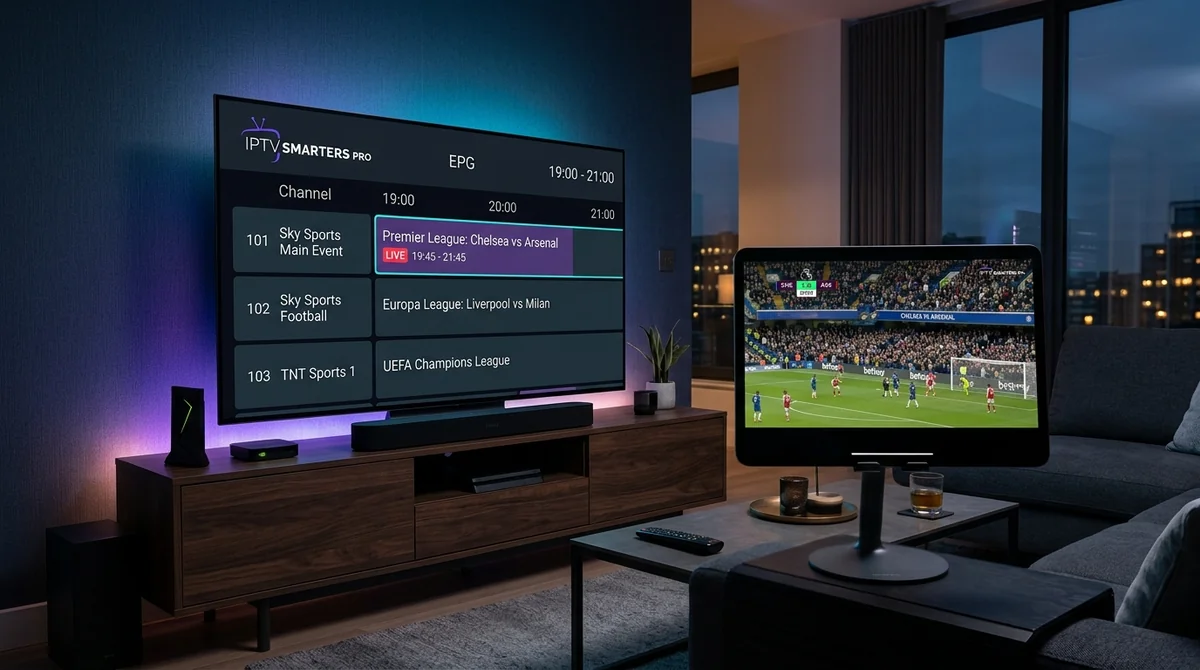
Step 1: Check the Device Clock FIRST
This is the step community sources shout about, and it goes first for a reason: a wrong device clock misaligns every EPG source at once, and no EPG-specific setting will fix it. If your box thinks it’s 7pm when it’s 8pm, every programme in the guide will look an hour out — and no amount of refreshing the guide or tweaking offsets will correct it, because the offset you’d need is different from what the setting expects.
Go to Settings → Date & Time on the device and make sure:
- Automatic date & time is switched on (it should pull from the network)
- Time zone is set to London / Europe-London — not manual, not a neighbouring zone
- The displayed time is actually correct right now
This is especially common on Firesticks and Android boxes after travel, after a factory reset, or when the box has been offline for a while. Fix the clock, force an EPG refresh (see next step), and check the guide again. A surprising number of “EPG is an hour out” complaints end here.
Step 2: Force an EPG Refresh
In your player, find the EPG update option and run it manually:
- TiviMate: Settings → EPG → Update EPG
- IPTV Smarters Pro: the refresh/reload option in settings or on the EPG screen
Then wait. This is the part people get wrong: a full guide import takes time. A big UK + international guide can take 5–10 minutes on first import, longer on an old box. If you check after 30 seconds and it’s still blank, that’s not failure — that’s impatience. Let it finish. If it’s still blank after a proper wait, move on.
While you’re in the EPG settings, check the update interval. If it’s set to 24 hours and the guide looks a day stale, that’s why — set it to 6 or 12 hours so it refreshes overnight.
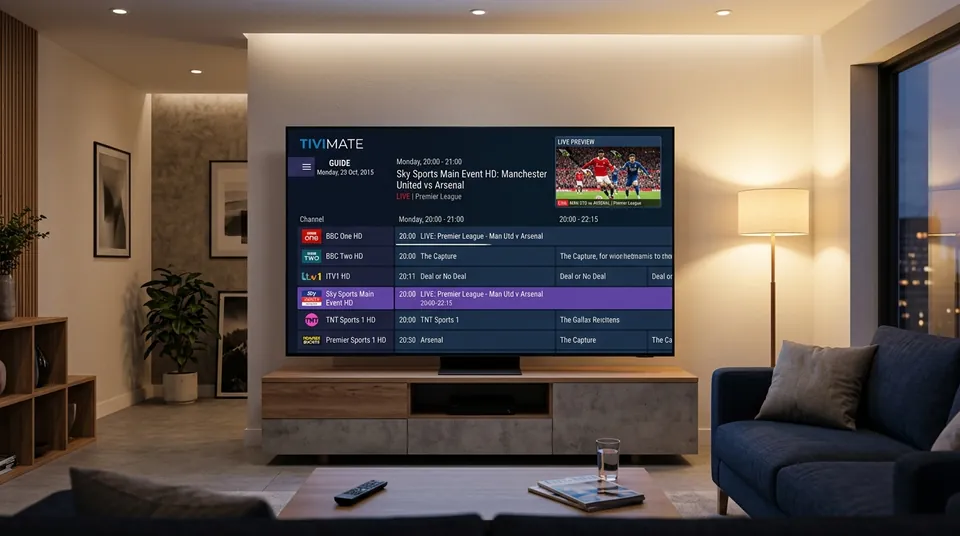
Step 3: Times Wrong by a Fixed Amount? Set the Time-Shift Offset
If the guide loads fine but everything is shifted by a fixed number of hours — all programmes an hour early, or an hour late — that’s a timezone/offset mismatch between the EPG data and your device, and it’s fixable in the player:
- TiviMate: Settings → Playlists → EPG → Time Shift, adjusted in whole-hour increments
- Other players have an equivalent “EPG offset” or “time offset” setting per source
Shift it one hour at a time and re-check the guide after each change. The classic UK case: the EPG source is in UTC and the device is on BST (or vice versa), so everything’s an hour out. Daylight-saving changes cause a fresh wave of this every March and October — if the guide was fine last week and wrong this week, check whether the clocks just changed.
But — and this matters — if step 1 showed your device clock was wrong, fix that first and re-test before touching the offset. Adjusting the offset to compensate for a wrong clock creates a mess that breaks again the next time anything syncs.
Step 4: Blank Guide Everywhere? Check the EPG Source URL
If the guide is blank on all channels, the player probably isn’t getting EPG data at all. The EPG usually comes from a separate URL — an XMLTV feed — that your provider supplies alongside the login:
- Xtream Codes logins usually include EPG automatically. If the guide is blank with an Xtream login, something’s off with the feed — and if the login itself is failing, that’s our login problems page, not this one.
- M3U playlist setups do not auto-include EPG. You need to enter the separate EPG/XMLTV URL from your provider in the player’s EPG source settings. If you never entered one, there’s your answer.
To test whether the EPG URL is alive: paste it into a browser on your phone or PC. It should start downloading an XML file. If the browser gets a 404 or an error, the URL is dead — ask your provider for the current one. No player setting can fix a dead URL. (If you’re unsure how the playlist and guide fit together, our guide to how M3U playlists work and how Xtream Codes logins work explain the plumbing.)
One thin-evidence note from the community: a few users report that toggling a VPN changes whether the EPG downloads — some EPG data endpoints get blocked on certain ISPs or VPN exits. It’s a single-source claim, so treat it as a thing to try if the URL works in a browser on your phone but won’t download in the player, not as a front-line fix.
Step 5: Blank on Some Channels? Fix the Channel Mapping
If most channels have guide data but some show “no information,” that’s usually a channel-ID mismatch: the EPG source calls the channel one thing and your playlist calls it another, so the player can’t join them up. Or the provider simply doesn’t supply EPG data for those channels — common with smaller international channels and some sports overflow feeds.
In TiviMate you can fix mismatches manually: long-press the channel → map it to the correct EPG entry. Tedious channel by channel, but it works. Before you do a hundred of them, though — check whether the missing channels are all from one country or one category. If they are, it’s the provider’s feed coverage, not a mapping problem, and mapping won’t help.
Step 6: Guide Takes Forever or the Box Chokes? Slim the Data Down
Big guides are heavy. If the EPG takes an age to load, or the app stutters while the guide is open, the box is struggling with the volume of data:
- Reduce EPG days to keep to 2–3 days instead of 7
- Limit the guide to the countries/categories you actually watch, if your player allows it
- Clear old EPG data / cached guide data, then re-download fresh
This is the fix for older Firesticks and budget boxes in particular. A lean guide loads in seconds; a bloated one can take minutes and make the whole app feel broken.
Why Catch-Up Breaks When the EPG Is Wrong
Worth knowing, since it comes up as an adjacent complaint: catch-up depends on the EPG. The player uses the guide to know when a programme aired so it can fetch the recording. If the EPG times are wrong (offset problem) or missing (mapping problem), catch-up either shows the wrong programme or doesn’t work at all. Fix the EPG and catch-up usually comes back with it — no separate fix needed.
When It’s the Provider’s Feed
Sometimes the honest answer is: the EPG feed itself is bad. Signs:
- The guide is blank on all channels even though the EPG URL downloads fine in a browser
- Times are wrong in a way that no offset fixes (random channels, random amounts)
- It was working, the URL hasn’t changed, your clock is right, refresh does nothing
As one community source puts it: sometimes the provider’s EPG is simply bad, and no amount of tweaking inside the player will fix that. EPG feeds get rebuilt server-side, and when they break, they break for everyone. Message us — we’ll check the feed, rebuild it if needed, or tell you straight if it’s a known issue being worked on. Include your device type, the app, and whether the guide is blank everywhere or wrong on specific channels — that tells us whether it’s the feed or your config.
Quick Recap: The Order
- Device clock and timezone — automatic, London, correct time
- Force EPG refresh — and give it 5–10 minutes
- Time-shift offset — for fixed-hour shifts, after the clock is right
- EPG/XMLTV URL — paste it in a browser to test; dead URL = ask the provider
- Channel mapping — for “no information” on some channels only
- Slim the data — fewer days, fewer countries, clear old data
- Message the provider — blank everywhere despite all of the above = the feed
Still stuck? Message us on WhatsApp at +44 7877 162001 with your device, your app, and exactly what the guide looks like (blank everywhere? an hour out? missing on some channels?). A real human answers — usually within minutes — and EPG issues are among the quickest we resolve, because the cause is almost always one of the six steps above. Our full EPG guide explains what the guide is and how it works if you want the background, all our troubleshooting guides are one click away, and if you haven’t subscribed yet there’s a trial signup — no card, no commitment.
Still Seeing Blank Guide Rows or Out-of-Sync Times?
Our support engineers are active on WhatsApp 7 days a week. Send us your device type and player app for rapid EPG feed verification and XMLTV URL validation.