
IPTV Setup: The Universal Flow (and the Failures Everyone Hits)
Setting up IPTV feels complicated until you see the shape of it. Then it’s three steps, the same on every device: install a player app → enter your login details → wait for the channels and guide to load. Everything on this page hangs off that flow, including the four failures that account for nearly every “it doesn’t work” message ever sent.
One thing to get straight first: the subscription and the app are two separate things. Your subscription is the login your provider gave you — an M3U link or an Xtream Codes username and password. The app (TiviMate, IPTV Smarters Pro, Smart IPTV, XCIPTV…) is just the TV set you plug that login into. When something breaks, knowing which half is broken saves you half the troubleshooting.
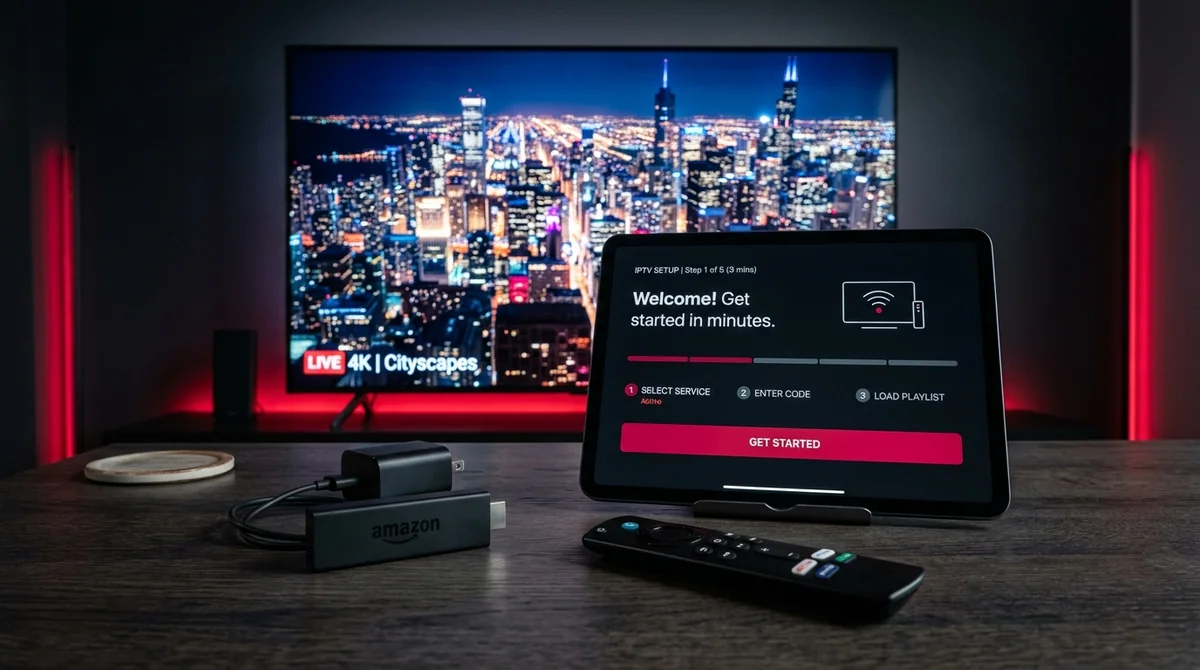
What does IPTV setup look like, step by step?
The canonical flow, converged from half a dozen guides and countless forum threads. The details vary by device — the exact button names live on our devices we support — but the shape never changes.
Step 1 — Install a player app
Pick a player app and get it onto your device:
- Firestick / Fire TV: install from the Amazon Appstore where available, or sideload: Firestick Settings → My Fire TV → Developer Options → turn on Install unknown apps (“Apps from Unknown Sources”), then install the Downloader app from the Amazon Appstore and use it to fetch the player’s APK. Delete the APK file afterwards — Firestick storage is limited and fills up fast.
- Smart TVs (Samsung, LG, Sony, Android TV): most player apps are in the TV’s own app store. On Android TV, if an app isn’t available you enable unknown sources under Settings → Device Preferences → Security & Restrictions first.
- Phones, tablets, laptops: app store or direct download, same as any app.
Which app? The two names that come up in every “which player” thread are TiviMate (the power user’s favourite — fastest channel zapping, best guide layout) and IPTV Smarters Pro (the easiest start for beginners). Compare all five properly on the app guides.
Step 2 — Enter your login details
Open the app and choose Add playlist (or “Add user”). Then pick the option matching what your provider sent you:
-
Xtream Codes: you’ll see fields for a playlist name (type anything), a server URL, a username and a password. Type them exactly as sent — including
http://at the start and any:8080-style port number at the end. A trailing space copied from a WhatsApp message is the single most common cause of a rejected login. - M3U: choose Load Your Playlist or File/URL, paste the long M3U link, and add it. Typing a 200-character URL with a TV remote is miserable — use the QR-code or email-the-link-to-yourself trick instead of typing.
- Portal URL + MAC: for MAG/Formuler-style boxes — the box loads the portal URL at startup and the provider recognises it by the registered MAC address. No username and password to type.
Don’t know which type your credentials are? The provider’s message usually says “M3U” or “Xtream” somewhere. The M3U guide and the Xtream Codes walkthrough each explain their format in full if you want the field-by-field version.
Step 3 — Wait for the first load, then set up the guide
Channels load fast. The EPG (programme guide) takes minutes on first sync — that is normal and only happens once. Then:
- If the provider gave you a separate EPG/XMLTV URL (M3U setups), add it in the app’s guide settings.
- In TiviMate, the guide sometimes needs to be assigned to the playlist manually even after it’s loaded — check it’s attached, not just enabled.
- Set the guide to refresh daily so it doesn’t drift.
Sort your favourites and categories, and you’re done. Total time for a first-timer: about 10–15 minutes, most of it waiting on the guide.
Credential Formats Compared
| Protocol | Inputs Required | EPG Delivery | Catch-Up Support | Ease of Entry on TV |
|---|---|---|---|---|
| Xtream Codes API | Server URL, Username, Password | Automatic via API | Full 7-day support | Easiest (short fields) |
| M3U Playlist URL | Single long HTTP link (200+ chars) | Needs separate XMLTV URL | App-dependent | Hard on TV remote (use QR) |
| MAC Address / Stalker | Device MAC registered with provider | Automatic via portal | Hardware-native | Zero typing (portal only) |
“Login failed / invalid details” — why does IPTV reject my login?
This is the single most common setup failure, and the forum threads about it all read the same: “when I enter username and password I get a message login failed check url username and password.” Run this checklist in order — one of these is almost always the cause:
- Trailing spaces. Copy-pasting credentials from a message drags an invisible space along at the end. Retype the fields by hand or paste into a notes app first and trim.
- Auto-capitalisation. TV virtual remotes love capitalising the first letter of usernames. Check every character.
-
The server URL format. Type it exactly as provided —
http://included, port number included (:8080), no trailing slash added or removed. One character off and the app can’t find the server at all. - Expired subscription. If the login worked yesterday and fails today, the sub may simply have lapsed. The red “Account Expired” stamp in IPTV Smarters usually means the account needs a provider-side reset — that’s not an app problem, message your provider.
- Wrong login type. Pasted an M3U link into the Xtream fields, or vice versa. The formats aren’t interchangeable at the app’s “add playlist” screen.
- Too many connections. Most plans allow one stream at a time; if the subscription is already playing on another device, the second login can be rejected.
If none of that fixes it, message your provider with a screenshot of the exact error. With us, that’s a WhatsApp message — logins are checked and reissued in the same conversation.
Why is my EPG / guide blank after setup?
The second most common failure. Channels work, guide shows nothing — or the classic forum panic: “my epg vanished… says loaded 2900 channels but doesn’t show info.” The diagnostic order users teach each other:
- Give it time. First sync takes minutes. If you opened the guide 30 seconds after adding the playlist, there’s nothing wrong yet.
- Check the EPG is assigned to the playlist. In TiviMate especially, having the guide enabled isn’t enough — it must be assigned to the playlist. Missing guide data on every channel usually means the assignment, not the data.
- Add the separate XMLTV URL if your provider gave one (M3U setups don’t always bundle guide data with the playlist link).
- Check device date, time and timezone. A wrong timezone shifts or blanks the guide — this causes more guide grief than any other single setting.
- Refresh the EPG manually, then set it to refresh daily.
And the honest one nobody’s settings can fix: if the guide works on some channels but not others, your box and app are doing their job — the provider simply has no guide data for those channels. No setting invents missing data. If the guide is missing across several devices and players, the problem is the provider’s guide source, not anything at your end. The full diagnostics live in our the EPG page; if guide data is blank everywhere at once, our guide-not-updating troubleshooter walks through it.
Why does it work on my phone but not my smart TV?
Device-specific gotchas account for a surprising share of setup failures:
- Firestick power. Use the original Amazon power adapter plugged into a wall outlet — not the TV’s USB port. Underpowered TV USB ports cause fake faults that look like the stick “won’t turn on.”
- Hardware vs software decoding. If you get audio but no picture, flip the player’s decoder setting: hardware decoding on is the default, but some streams need software decoding. This one toggle fixes a whole category of “black screen with sound” reports.
- Buffer size. Increasing the player buffer (5–10 seconds) smooths streams on marginal connections — worth setting during setup rather than after the first freeze.
- Smart TV app restrictions. Some users suspect their TV blocks “non-standard apps.” Usually it’s not the TV — it’s trial expiry or wrong credentials. But do enable unknown sources first on Android TV (Settings → Device Preferences → Security & Restrictions), because the store-only path genuinely blocks some players.
- Sideloading confusion. “How do I install apps not in the Google Play Store?” is a real and common question. The answer is the Downloader flow above — and it’s normal for it to feel sketchy the first time.
For the full per-device walkthrough, pick your device on the device setup pages — the Firestick setup walkthrough is the one 90% of users need.
Do I need a VPN to set up IPTV?
No. The service works without one, and no part of setup requires it. The VPN question comes up at setup stage because people bundle “things I might need” together — but a VPN is optional, not a prerequisite. Some viewers use one if their broadband provider interferes with streams at peak times (user-reported, not verified — more in our internet speed requirements); others keep one on standby. Entirely your call, and it changes nothing about the three steps above.
How do I get the M3U link onto my TV without typing it?
The long-URL pain is real: M3U links run to hundreds of characters and typing them with a TV remote is the single most annoying minute in all of IPTV setup. Three workarounds users actually use:
- Email it to yourself and open the email on the TV’s browser, then copy-paste.
- QR code — generate one from the link on your phone and scan/open it on the TV.
- Use the Xtream login instead — server URL + username + password are far shorter to type than a full M3U URL, and most apps support both. If your provider gave you both (we do), choose whichever is easier to enter on that device.
Checklist: is it normal for the guide to take a long time on first load?
Yes — and since this question comes up so often, here’s the first-run expectations list in one place:
- ✔ Channels appear within a minute or two. normal
- ✔ Guide/EPG takes several minutes on first sync. normal, once only
- ✔ VOD posters and metadata fill in gradually. normal
- ✔ App asks you to assign the EPG to the playlist. normal (TiviMate)
- ✘ “Invalid details” on first login attempt. not normal — run the login checklist above
- ✘ Guide blank after 15 minutes and a manual refresh. not normal — run the EPG diagnostics above, then message your provider
Settings worth changing in your first week
Setup isn’t quite done when the channels appear. The users who have the smoothest long-term experience change four settings in the first week — none of them are in the default configuration:
- Guide refresh: daily. Set the EPG to refresh once a day (overnight is ideal). Weekly refresh lets the guide drift; manual-only refresh means you forget and the guide goes stale. Daily is the community consensus.
- Player buffer: 5–10 seconds. A bigger buffer is the cheapest insurance against micro-freezes on a connection that’s fast but jittery. It costs you a few seconds of channel-zap speed and buys you a visibly calmer picture.
- Hardware decoding: on (with a fallback plan). Leave hardware decoding enabled for the best performance — but remember where the toggle is. If you ever get audio with a black screen on a specific channel, flipping to software decoding for that stream fixes it.
- Favourites and category hiding. A 45,000-channel list is unusable without curation. Spend ten minutes favouriting your actual channels and hiding the categories you’ll never open (there will be dozens). Every “IPTV is overwhelming” complaint traces back to skipping this step.
Do those four and the service stops feeling like a tech project and starts feeling like TV.
Try it free for 24 hours — setup help included
The honest way to test any of this is on your own device, with real credentials, during a live match. Our 24-hour free trial includes the full channel list, VOD library and programme guide — no card required — and we’ll walk you through the setup on WhatsApp if anything above doesn’t behave. Message +44 7877 162001 and your login arrives in minutes, with the app we’d recommend for your device named in the same message. Stuck on a concept? Browse all the guides.
Start Your Free 24-Hour IPTV Trial
Experience 50fps UK sports, over 60,000 on-demand movies, and full 7-day catch-up on your favourite player app. We guide you every step on WhatsApp.