
Smart IPTV (SIPTV) — Setup, MAC Activation & Fees
Smart IPTV — SIPTV to everyone who uses it — is the old guard of smart TV apps. Long before Firesticks were in every living room, this was the app Samsung and LG owners installed to get IPTV on their televisions with no extra box at all. It’s still going, still the app a huge existing user base sticks with because it’s “familiar, stable, and does the job.” But it’s also the app with the most confusing setup of the five we cover: playlists uploaded through a website, a licence tied to your TV’s MAC address, and a trial that quietly turns into a fee. This page walks through all of it.
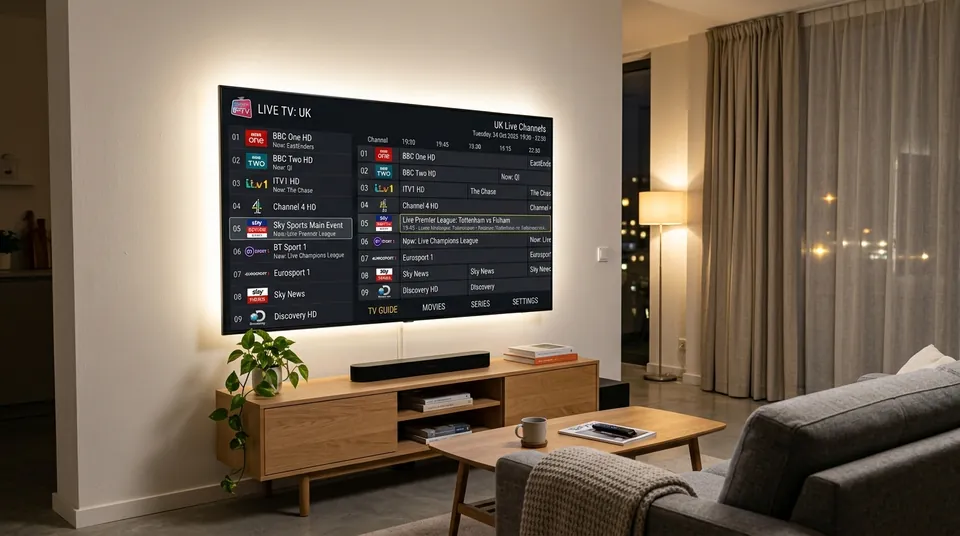 Samsung Tizen & LG webOS • Low Memory Footprint
Does Smart IPTV include channels?
No. Like every player on this site, Smart IPTV is a player, not a provider — it ships completely empty. The most common SIPTV support question of all is “I installed it and it’s empty,” and the answer is always the same: you haven’t given it a playlist yet. Channels come from a separate IPTV subscription with a provider; the app is just the frame your channels play inside. Never pay anyone who sells you “a Smart IPTV subscription with channels included” — they’re selling a provider login with extra steps, and usually at a markup. Our subscription gives you the playlist; SIPTV gives you the TV-shaped window to watch it in. Compare it with the other players on the player apps hub.
The Division of Responsibilities
📺 Smart IPTV (The App)
- The media rendering client installed on your Samsung or LG television.
- Zero streams, TV feeds, or movies bundled out of the box.
- Operates purely as an M3U stream decoder and on-screen EPG table.
- Requires an independent €5.49 lifetime app activation with the SIPTV developer.
🛰️ IPTV UK Subscription (The Content Feed)
- The streaming infrastructure transmitting 45,000+ live broadcast signals.
- Supplies high-bitrate 50fps UK sports, Premier League fixtures, and 4K VOD.
- Generates your personal dynamic M3U link to paste into the SIPTV web portal.
- Backed by full UK customer support on WhatsApp for quick technical assistance.
Is Smart IPTV free? (The 7-day trial and the €5.49 fee)
Short answer: free for 7 days, then a one-time activation fee of €5.49 (roughly £4.70–£5, depending on the exchange rate) per TV. Community reports agree on the €5.49 figure with strong consistency — it’s one of the least disputed facts in this space.
The details that catch people out:
- The fee is per device, not per subscription. Each TV’s MAC address needs its own €5.49 activation. Two TVs means two activations.
- It pays for the player only. The single most common fee confusion: users think the €5.49 is their IPTV subscription. It isn’t. It’s the app licence. Your channels are a completely separate subscription with your provider, and providers spend a lot of time explaining this to confused customers.
- It’s one-time, not yearly. Pay once per TV and the licence stays. Factory resets on Samsung TVs generally don’t break it (the MAC address persists), but if you replace the TV, the new one needs its own activation.
- You pay at siptv.app/activation via PayPal or card — the portal the app itself points you to. Don’t buy “SIPTV activation codes” from random resellers; there’s no reason to pay a middleman for this.
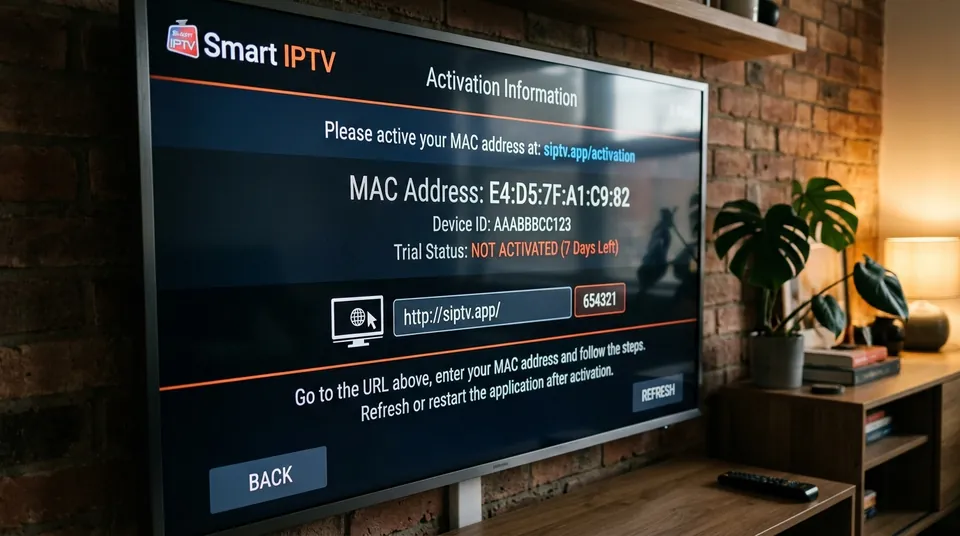 7-Day Free Trial • €5.49 Lifetime Per-TV Licence
siptv.app/activation. You will receive an immediate confirmation email and the activation unlocks on your television screen automatically upon the next app restart.
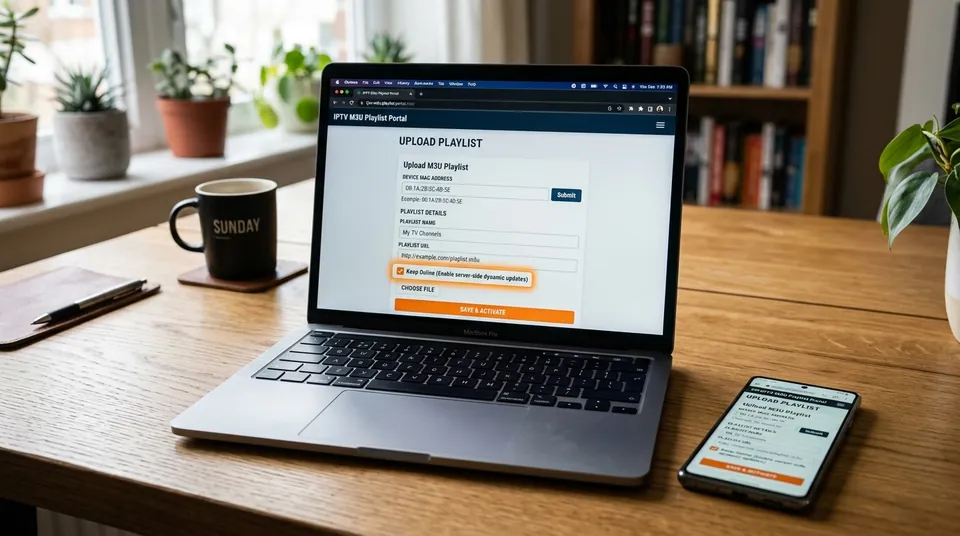 Always Tick Keep Online • Dynamic M3U Sync
How do I get my playlist into Smart IPTV? (Full setup)
SIPTV’s setup is unusual: you don’t type anything into the TV. You read a code off the TV, then do the work on your phone or computer. Here’s the full flow:
- Install the app. On LG, it’s in the LG Content Store. On Samsung, it was removed from the Samsung Apps store back in 2019 — see the section below for how Samsung owners install it now. On Firestick/Android it’s a sideload from apk.siptv.app.
- Open the app and write down the MAC address shown on screen. This is the key to everything — photograph it if your handwriting is bad.
- On your phone or computer, go to siptv.app/mylist. Enter the MAC address exactly — it usually needs to be in CAPITALS — and paste in your M3U playlist URL.
- Use your provider’s dynamic M3U link, not a static file. A static M3U is a snapshot that goes stale; the dynamic link stays current. Our M3U playlist guide explains the difference.
- Tick “Keep Online.” This is the step everyone skips and then regrets: unticked, your playlist registration can lapse after a few days and your channels vanish with a “playlist expired” message. Ticked, it stays put.
- Restart the app on the TV. Your playlist loads. If it doesn’t appear immediately, use the reload option in the app.
What MAC address do I enter? “MAC not found” fix
The MAC address is the device ID SIPTV shows you on screen when you open the app — it’s how their website knows which TV your playlist belongs to. When siptv.app/mylist says “MAC not found”:
- Check the capitals. MAC addresses are usually entered in uppercase with colons; a lowercase or mistyped character fails silently.
- Make sure you’re reading the app’s MAC, not your TV’s network MAC. Some TVs show a different MAC in their network settings than the one SIPTV generates. Use the one displayed inside the SIPTV app.
- “My TV shows a different MAC every time I open the app.” This happens with randomized MAC addresses (common on Android-based sets using Wi-Fi privacy features). In the app’s settings, look for an option like “Use Device MAC” instead of the randomized one, and in your TV’s Wi-Fi settings, turn off MAC randomisation for your home network. A shifting MAC breaks the link between your TV and your uploaded playlist every time it changes.
Smart IPTV isn’t in the Samsung app store anymore — how do I install it?
Correct — Samsung pulled SIPTV from the Samsung Apps/Smart Hub store back in 2019, and it never came back. The app itself isn’t dead; only the store listing is gone. Samsung owners have two routes:
LG owners have it easier: SIPTV is still officially in the LG Content Store, installable like any normal app. Our LG TV setup page and Samsung TV setup page cover both in detail.
My playlist disappeared / no channels after restart — fix
The vanishing playlist is SIPTV’s signature support issue, and it has a short list of causes:
- “Keep Online” wasn’t ticked when you uploaded the playlist. Go back to siptv.app/mylist, re-add the playlist, and tick it this time. This is the cause more often than all the others combined.
- The MAC changed. Wi-Fi↔Ethernet switches, firmware updates, or randomized MAC addresses can all change the MAC the app reports — and your playlist is keyed to the old one. Use the Lock MAC option in the app’s settings so cache clears don’t reset it, and set Android-based TVs to use the device MAC rather than a randomized one.
- Cache clear wiped the link. Some TVs clear app data aggressively. Lock MAC (above) is the defence.
If channels are missing but the playlist entry is still there, hit Reset Playlist on siptv.app/mylist first, then re-add the playlist — that clears stale data on SIPTV’s side before you touch anything on the TV.
Playlist “expired” after a few days even though my IPTV is paid
This one panics people: their provider subscription is fully paid up, but SIPTV says the playlist expired. The two expiries are unrelated. Your provider subscription is fine — what’s expired is the playlist registration on SIPTV’s website, which lapses after a few days if “Keep Online” wasn’t ticked at upload. Re-upload the playlist with Keep Online ticked and it stays. Your provider didn’t cut you off; the app’s website just forgot your TV.
Can I use Smart IPTV on my Firestick?
Technically yes, practically “why would you.” SIPTV isn’t in the Amazon Appstore, so it’s a sideload via apk.siptv.app — and on a Firestick you’re giving up the entire point of the app, which is running natively on a smart TV with no stick involved. On Firestick, TiviMate and IPTV Smarters Pro are both better fits: faster, designed for the remote in your hand, and (in Smarters’ case) free with no per-device fee. SIPTV’s natural home is Samsung and LG televisions — that’s the niche it still owns.
Adult content is locked — what’s the password?
SIPTV ships with parental controls on adult categories, and the default PINs users report are 0000, 1234 or 1122, depending on the version. Try those first. If a previous owner changed it, you’ll need to reset it through the app’s settings — and if you’re setting up a family TV, change the default to something of your own rather than leaving a forum-famous PIN on it.
🔒 How to Reset or Change Your SIPTV Parental PIN:
Open Smart IPTV on your TV → Press the Settings button (usually the Blue key on your remote or the gear icon) → Scroll down to Parental Control → Enter your existing PIN (try 0000 or 1234) → Select Change PIN to set your custom 4-digit code.
SIPTV vs IBO Player — should I switch?
The honest community picture: SIPTV is the classic — long-running, stable, familiar to anyone who’s had IPTV on a Samsung TV for years. IBO Player is the modern successor most providers now steer new smart-TV users toward: smoother interface, in-store installation on Samsung and LG, and playlist management through a web portal instead of the MAC-and-mylist ritual. Neither includes channels; both need your provider login. If SIPTV is already working on your TV, there’s no urgent reason to move. If you’re setting up a new Samsung TV today and the USB sideload fills you with dread, read the IBO Player page before you start.
| Comparison Factor | Smart IPTV (SIPTV) | IBO Player |
|---|---|---|
| Samsung TV Installation | USB Drive Sideload (Removed 2019) | Direct Samsung Smart Hub Store |
| LG TV Installation | Direct LG Content Store | Direct LG Content Store |
| Trial Duration | 7 Days | 7 Days |
| Licence Cost | €5.49 One-Time (Lifetime) | ~€8–€10 One-Time (Lifetime) |
| Xtream Codes API Support | M3U URL Only | Native Xtream Codes API |
| UI & Remote Responsiveness | Classic / Functional | Modern Netflix-Style Grid |
Get your playlist on WhatsApp — we’ll walk you through the MAC step
SIPTV’s setup has more moving parts than any other player here, which is exactly why we help with it free. Message us on WhatsApp when you order — or start with the free 24-hour trial — and we’ll send your dynamic M3U link plus talk you through the siptv.app/mylist step, the Keep Online tick box, and the Lock MAC setting, so your playlist survives its first restart. One less evening lost to “MAC not found.” Check our plans or read the IPTV subscription UK guide if you’re still deciding.