
IPTV on Samsung Smart TV — the Tizen Setup Guide
Samsung makes the best-selling TVs in the UK, and running IPTV on one is perfectly doable — but it works nothing like a Firestick. Samsung’s Tizen operating system runs Tizen apps only: no APKs, no sideloading, no TiviMate, no Downloader. Once you accept that, everything else is straightforward. This page covers which Samsung models can run IPTV at all, what to use now that Smart IPTV vanished from the store, the USB install ritual, and the activation fee everyone confuses with the subscription.
Running a different TV? The full device list has every other platform, including LG’s webOS guide and the TV brand guide for Sony, Philips, TCL and Hisense.
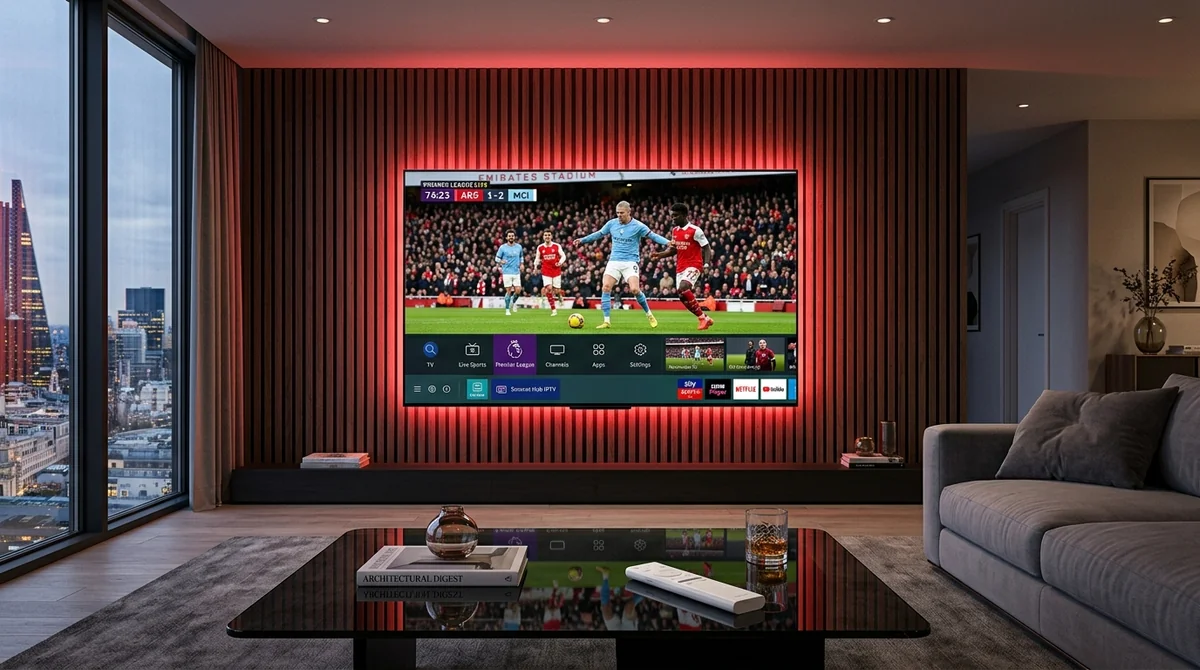 No Android APK Sideloading • Store-Native Apps
Can You Install TiviMate on a Samsung TV?
No — and this is the #1 misconception in every Samsung IPTV thread, so it goes first. TiviMate is an Android app. Samsung TVs run Tizen. There is no APK support on Tizen, period — users migrating from a Firestick keep expecting to install Android apps and the answer is always the same. The community’s standard correction: use a Tizen-native player instead. The good ones are covered below, and our Smart IPTV app page and IPTV Smarters guide compare them properly.
Same rule kills the “developer mode 1-2-3-4-5” question — Samsung’s developer mode doesn’t unlock Android installs. It’s for Tizen development, not a back door to sideloading.
Which Samsung Models Can Run IPTV at All?
Check your model series before anything else — it’s the letter after the screen size (e.g. UE55QU8000 = Q series):
- D series and older: Smart IPTV doesn’t work, and most modern players won’t either. These sets are too old — use a Firestick instead (see our the Firestick page).
- E, ES, F, H, HU, J4, J52 series: the old Orsay system. SIPTV has a legacy Orsay widget for these — it works, but it’s the old generation.
- J, K, M, N, Q, R series (2015+) — Tizen: the Tizen widget route. This is the vast majority of Samsung TVs sold in the last decade.
| Samsung TV Series | Release Years | Operating System | IPTV Support | Community Recommendation |
|---|---|---|---|---|
| J, K, M, N, Q, R, S, T, A, B, C, D | 2015 – 2026+ | Samsung Tizen OS (2.4 – 8.0) | Full Support | Store-native IPTV Smarters Pro or IBO Player |
| E, ES, F, H, HU, J4, J52 | 2012 – 2015 | Legacy Samsung Orsay OS | Legacy Widget | SIPTV legacy Orsay widget via USB |
| D Series & Older Models | Pre-2012 | Early Proprietary Firmware | Unsupported | Plug a Firestick or Android TV box into HDMI |
If you’re unsure, the series letter is on the sticker on the back of the TV and in Settings > Support > About This TV.
Why Smart IPTV Disappeared from the Samsung App Store
Smart IPTV (SIPTV) — the classic Samsung IPTV app — was removed from the Samsung Apps Store, widely reported across forums with no clear reason given. It still works if installed, but new installs from the store aren’t possible. The community’s workarounds, in order of preference:
- Use a different Tizen player from the store — IPTV Smarters Player, IBO Player, Smartone, SET IPTV, Flix IPTV, or NET IPTV are all in the Samsung store. This is the clean route and what we’d recommend first (setup below).
- USB install of the SIPTV Tizen widget — the ritual below, for those who specifically want SIPTV.
One caveat: app availability varies by region store. If Smarters doesn’t appear in your country’s Samsung store, SIPTV-via-USB is the usual fallback. And on 2023+ Tizen models, you may need to enable external-storage installs under Settings → General → Apps before the USB method works.
The Clean Route: IPTV Smarters from the Samsung Store
This is the setup the community now calls the clean way:
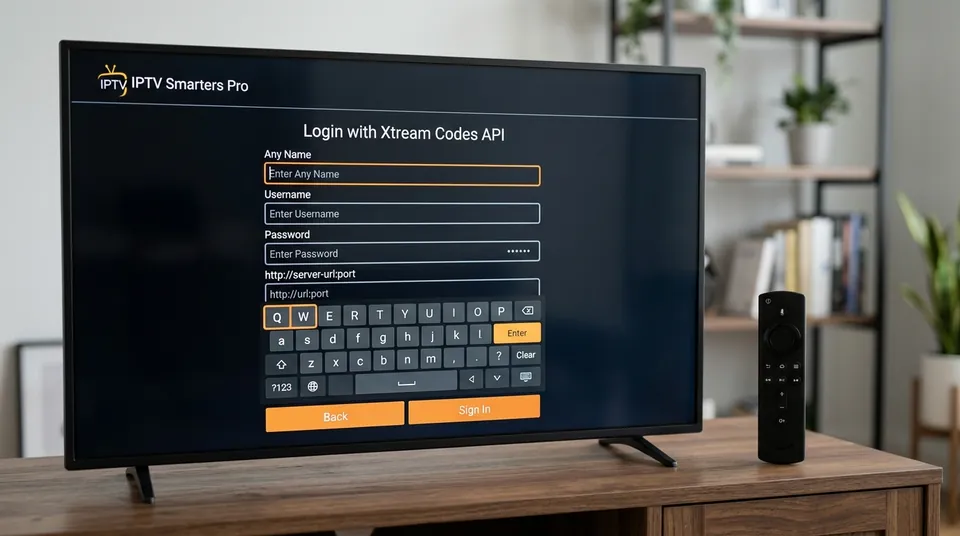 Full EPG & 7-Day Catch-Up • Direct On-TV Login
- Press Home → Apps and search for “IPTV Smarters Pro” (or IBO Player, Flix IPTV, Smartone).
- Install and open it once — you’ll see a setup screen, device ID, or MAC address.
- Choose Login with Xtream Codes API and enter the server URL, username, and password from your provider. The community strongly prefers Xtream Codes over M3U here — simpler and more reliable.
- Wait for the channels and EPG to load before judging anything. First loads take minutes on big playlists.
- One real, oft-repeated gotcha: watch for trailing spaces when entering the password with the on-screen keyboard. A phantom space at the end fails the login and wastes twenty minutes of head-scratching.
You’ll get your Xtream Codes details with any subscription — ours arrive on WhatsApp within minutes of the free trial request — and the technology itself is explained in our Xtream Codes portal.
The USB Widget Install (for SIPTV die-hards)
If you specifically want Smart IPTV despite its store removal, the Tizen USB ritual:
- Format a USB stick as FAT32.
- Create a folder called
userwidgetat the USB root and place the SIPTV Tizen widget files inside. - Plug the USB into the TV — the TV should auto-install the widget.
- Remove the USB afterwards.
- J series owners, critical step: SIPTV disappears after a TV restart on J series unless you turn off “App Auto Update” under Menu → Smart Hub. This exact complaint — “siptv keeps disappearing after tv restart” — recurs constantly, and that’s the fix.
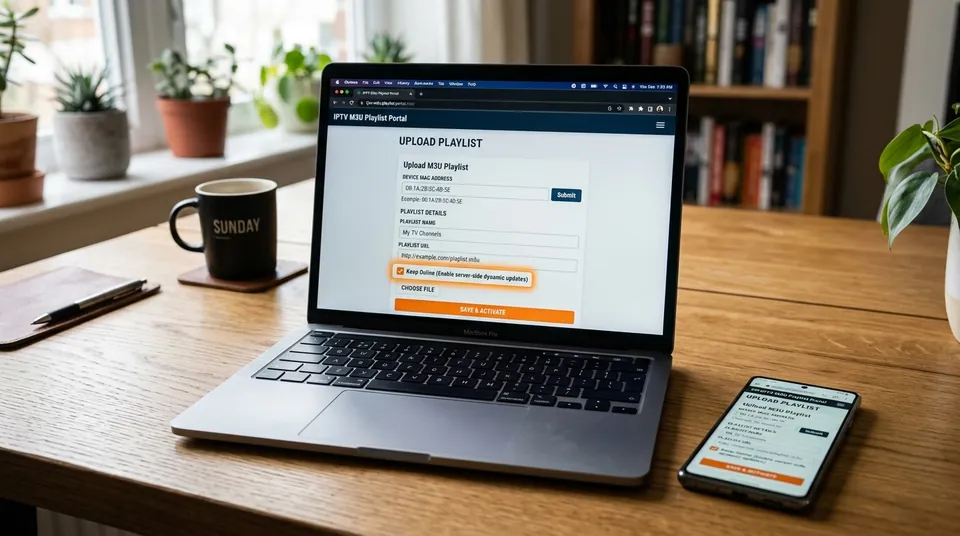 Remote MAC Portal Activation • Zero Typo Stress
Once installed, note the MAC address the app shows on its start screen. Then, on your phone or PC, go to the app’s playlist portal (siptv.app/mylist for SIPTV), enter the MAC plus your M3U URL, hit Add Link, and restart the app on the TV. Groups → watch. The two-device dance confuses people used to on-TV logins, but you only do it once — and you never have to type a long playlist URL with the TV remote.
The SIPTV Activation Fee: Who Actually Gets Your Money
“Smart IPTV trial ended — how do I activate / how much / do I pay the app or my provider?” This question never dies, so here’s the straight answer: the fee goes to the app developer, not your IPTV provider. It’s a one-time payment of roughly $6 (about €5.49), after a free 7-day trial, and it’s completely separate from your subscription. It is not a scam, it’s not part of your plan, and paying it doesn’t buy you any channels — the app is just a player; your subscription supplies the content. Same logic applies to IBO Player’s one-time/lifetime licence.
If anyone — provider or “support agent” — tells you the activation fee is part of your subscription bill, that’s a red flag. Our the plans page shows exactly what the subscription costs and what’s included; app-developer fees are never in it.
Which Samsung IPTV App Is Actually Best?
The recurring forum debate — Smart IPTV vs IBO Player vs Flix IPTV vs Smarters — has a practical answer rather than a winner:
- IPTV Smarters Player: easiest login (Xtream Codes on the TV itself), best for beginners. The default recommendation.
- Smart IPTV (SIPTV): the lightweight classic, cheapest long-term — but requires the USB ritual now.
- IBO Player: the modern SIPTV replacement — smoother interface, free 7-day trial built in, one-time licence. We can activate it remotely for you.
- Flix IPTV / Smartone / SET IPTV / NET IPTV: solid alternatives if your regional store lacks the above.
| App Name | Store Availability | Login Route | 7-Day Catch-Up | Licensing Cost | Best For |
|---|---|---|---|---|---|
| IPTV Smarters Pro | Available in Store | On-TV Xtream Codes | Fully supported | Free install | Beginners wanting instant TV login |
| IBO Player | Available in Store | MAC ID / Web Portal | Fully supported | 7-day trial, ~€8 lifetime | Modern interface & remote playlist management |
| Smart IPTV (SIPTV) | Removed (USB only) | MAC ID / Web Portal | Basic guide only | €5.49 one-time | Lightweight classic on older Samsung sets |
| Flix IPTV / Smartone | Available in Store | MAC ID / Xtream Codes | Fully supported | One-time fee after trial | Backup when Smarters is geo-restricted |
Our SIPTV guide and the IBO page go deeper on the two most debated picks. For the subscription side — £14.99 a month, every channel and feature on every plan — see available plans.
Can You Use a VPN on a Samsung TV?
There are no native VPN apps on Tizen. Your options are a router-level VPN (covers the whole house, including the TV) or Smart DNS. That’s it — and it’s worth knowing before you buy, because it’s a genuine Firestick/Android advantage: those platforms install VPN apps directly. The underlying question — “should the VPN be on or off when buffering starts” — is answered in our Firestick walkthrough: test off first, because a VPN can cause the very buffering you’re trying to fix. Our smart TV walkthrough maps the VPN situation across every other TV OS.
Samsung IPTV FAQs
Will IPTV work on my old Samsung D series TV?
No — D series and older can’t run the modern player apps. A Fire OS Firestick in an HDMI port is the practical fix; see our Firestick device guide (and avoid the Vega-OS models).
Why does Smart IPTV keep disappearing after I restart the TV?
You’re on a J series set. Turn off App Auto Update under Menu → Smart Hub. Or switch to a store-native player like IPTV Smarters that doesn’t need the USB workaround.
Does catch-up work on Samsung TV apps?
Yes, where the app supports it — and the main Tizen players (IPTV Smarters, IBO Player, Flix IPTV) do. Catch-up lets you scroll back through the programme guide and play anything aired in the last 7 days. Every plan we sell includes 7-day catch-up as standard — it’s in the plan details — so if your app shows the catch-up icons in the guide, it’ll work with your login. If a lightweight player doesn’t show them, that’s the app’s limitation, not your subscription.
Do I need Samsung developer mode (1-2-3-4-5) for IPTV?
No. Developer mode doesn’t enable Android app installs on Tizen — it’s for Tizen app development. Standard player apps install without it.
Tell us your Samsung model and we’ll take it from there.
Message us on WhatsApp at +44 7877 162001 — we’ll confirm compatibility, recommend the right Tizen app, send your Xtream Codes login, and get your 24-hour free trial running. No card, no commitment. Or browse the IPTV UK homepage first for the service overview.