IPTV on Firestick in the UK — Why the Stick Wins, and Which One to Buy
IPTV on Firestick in the UK — Why the Stick Wins, and Which One to Buy
If you ask a UK IPTV forum what device to buy, the answer comes back fast and nearly unanimous: get a Firestick. Not a debate, not a shortlist — a reflex. There’s a reason the little HDMI stick shows up in practically every setup discussion, and it’s not brand loyalty. It’s that the Firestick happens to be the cheapest, simplest route to the best IPTV apps on the platform where those apps actually exist.
This page explains why the stick dominates, which model to buy (and which to avoid), the network setup that makes 4K sport stable, and the honest stick-vs-smart-TV trade-off. Setup walkthroughs live on our Firestick device page — this page is about the decision, not the button presses.
 Fire OS • Native TiviMate & Sideloading Support
Why is the Firestick the UK’s favourite IPTV device?
Five reasons, all practical:
It’s cheap. £30–60 — “less than one month of cable,” as the forums put it. The stick costs less than a single month of the Sky package most buyers are trying to replace, and it turns any TV with an HDMI port into a smart TV. No new television required.
It’s Android-based. This is the decisive one. The best IPTV player apps are built for Android — and the Firestick runs Fire OS, Amazon’s Android fork. TiviMate app, the consensus best player app, is Android/Firestick only. Sideloading anything else you need takes “30 seconds” via the Downloader app. On a Samsung or LG smart TV you’re stuck with whatever the manufacturer allows on Tizen or webOS; on a Firestick, the app catalogue is the whole Android ecosystem.
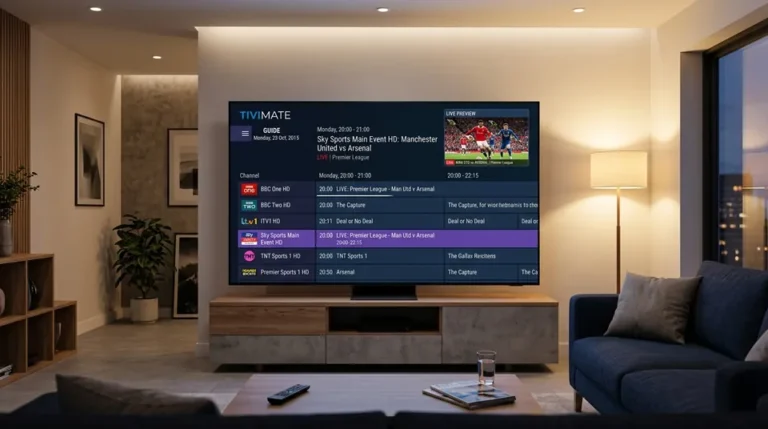
The remote works. The Firestick remote “works perfectly with IPTV apps” — particularly TiviMate’s EPG grid, which was designed remote-first. Directional-pad navigation through a programme guide is one of those things that sounds trivial until you’ve tried to do it with a fiddly smart-TV pointer or a phone app stretched onto a television. The daily experience of IPTV is 90% remote-in-hand; the stick nails it.
It’s portable. Unplug it from the living-room TV, plug it into the hotel TV, the caravan, the second home — and your subscription, apps, favourites and EPG travel with it. For anyone who splits time between places, this alone justifies the purchase.
It’s VPN-friendly. VPN apps exist natively for Fire OS, which matters because UK broadband providers have been reported to throttle streaming during live Premier League matches. Whether or not you ever need one, the option is a couple of taps away — no router configuration, no technical heroics.
Add it up: cheapest entry, best apps, best remote feel, travels with you. That’s why the forums answer on reflex.
The Hardware Reality Check for British Households
Many UK television buyers spend £800 to £1,500 on a gorgeous OLED or QLED screen from LG or Samsung, only to find the built-in operating system sluggish when navigating massive IPTV playlists. Smart TV processors are optimized for native image processing and basic SVOD apps (Netflix, Prime Video, iPlayer). Plugging a dedicated £45 Fire TV Stick into an HDMI port delegates the heavy EPG parsing and video container decoding to specialized silicon with dedicated RAM, completely bypassing smart TV software limits.
Which Firestick should you buy for IPTV?
Not all sticks are equal, and the differences matter specifically for IPTV. Here’s the buyer consensus:
| Model | Processor & RAM | Wi-Fi Connectivity | Storage | IPTV Performance | Buyer Verdict |
|---|---|---|---|---|---|
| Fire TV Stick 4K Max (2nd gen) | Quad-core 2.0 GHz, 2GB LPDDR4 | Wi-Fi 6E (Tri-band) | 16GB | Flawless 4K50, zero EPG lag | Top Pick |
| Fire TV Stick 4K (Standard) | Quad-core 1.7 GHz, 2GB RAM | Wi-Fi 6 (Dual-band) | 8GB | Smooth 4K, slight guide delay | Budget Pick |
| Fire TV Cube (3rd gen) | Octa-core 2.2/2.0 GHz, 2GB RAM | Wi-Fi 6E + Built-in Ethernet | 16GB | Blazing fast, instant zapping | Power User |
| Fire TV Stick Lite | Quad-core 1.7 GHz, 1GB RAM | Wi-Fi 5 (802.11ac) | 8GB | App crashes, EPG buffering | Avoid |
| 2026 Budget Devices (Vega OS) | Non-Android microkernel OS | Varies | 8GB | No Android sideloading | Caution |
Fire TV Stick 4K Max (2nd gen) — the top pick
The fastest processor in the range, Wi-Fi 6E, and proper 4K HDR handling. For IPTV specifically, the extra processing headroom shows up where it counts: faster app loading, smoother EPG scrolling with thousands of channels, quicker channel zapping, and 4K sport without the micro-stutters that weaker hardware introduces. If you’re buying one stick for the main TV where the football gets watched, this is the one. The price premium over the standard 4K stick is small; the performance gap isn’t.
The 2nd generation 4K Max also doubles local flash storage to 16GB. This is critical for users who utilize TiviMate’s local catch-up buffer, download multiple player apps for testing, or maintain extensive electronic programme guide databases that can easily consume 1.5GB to 2GB of persistent app cache over time.
Fire TV Stick 4K (standard) — the budget option
Does the job for most viewing. If the budget is tight or the stick is going on a bedroom TV where the usage is lighter, the standard 4K stick runs TiviMate and Smarters perfectly well. You’ll notice the difference against the Max mainly in EPG scroll smoothness and app-switch speed — noticeable, not disqualifying.
Unlike the Lite model, the standard 4K stick retains a full 2GB of working RAM. That single specification ensures the operating system will not aggressively kill your active video stream while parsing updated EPG XML files in the background.
Fire TV Cube — for power users
Faster still, hands-free voice control, and an Ethernet port built in. Honestly overkill for most IPTV setups — the 4K Max does everything the Cube does for viewing purposes at a lower price. Buy the Cube if you want the smart-home hub features; don’t buy it for IPTV.
Note also that the Cube’s built-in Ethernet port is 10/100 Mbps. While 100 Mbps is plenty for 4K streams (which require 25 Mbps), you can achieve identical or faster throughput with a Gigabit USB adapter on the 4K Max.
Avoid the Fire TV Stick Lite
This warning comes up in multiple sources and it’s worth heeding: the base Stick Lite’s limited RAM causes buffering. Not network buffering — the stick itself struggling: slow guide loads, apps killed in the background, stutter on heavier streams. Saving £15–20 on the Lite and then blaming your provider for what is actually underpowered hardware is one of the most common self-inflicted wounds in IPTV setups. The Lite is fine for iPlayer; it’s not the right tool for a 45,000-channel EPG.
When you launch an IPTV app on the Stick Lite, the 1GB RAM is instantly swamped. The Fire OS Low Memory Killer (LMK) daemon constantly drops video decoder frames to prevent the system from crashing, resulting in intermittent audio sync drift and micro-stutters during live football.
The 2026 warning: Vega OS on new budget sticks
One to watch in 2026: Amazon has begun shipping its own Vega OS (replacing Android-based Fire OS) on new budget Fire TV devices. Vega OS does not run Android apps the same way — which potentially breaks the sideloading workflow and Android-only apps like TiviMate that the whole IPTV-on-Firestick consensus depends on. Before buying any new budget Fire TV device in 2026, check which OS it ships with. The established Android-based models (4K, 4K Max) remain the safe buy for IPTV until the Vega app situation is proven. When in doubt, the 4K Max 2nd gen is the known quantity.
Why does RAM and processor speed matter so much for IPTV?
Because an IPTV app is doing far more work than Netflix. A streaming app like iPlayer loads one catalogue; TiviMate loads your full channel list (thousands of entries), the EPG data behind it (tens of thousands of programme entries), channel logos, VOD metadata — and then has to scroll, search and zap through all of it instantly on a directional-pad remote. That workload is brutally sensitive to RAM and processor speed.
This is also why “buffering” gets misdiagnosed so often. Users report a stream freezing and blame the provider, when the stick’s RAM is exhausted and the app is being throttled by the OS. The diagnostic rule: if every channel stutters equally, including VOD, suspect the device or network; if it’s specific channels at specific times (Saturday 3pm), suspect the server. Our buffering fix guide walks through telling the two apart — but the cheapest prevention is simply not buying the underpowered stick.
The Local Database Overhead of IPTV Apps
When you subscribe to a comprehensive UK service like IPTV UK, the server delivers an index containing over 2,000 live HD/4K channels, 50,000 video-on-demand assets, and a 7-day electronic programme guide across hundreds of categories.
- XMLTV Parsing: Decompressing and reading a 60MB raw XMLTV schedule file requires high single-core CPU throughput.
- SQLite Cache: Storing programme metadata in local RAM allows zero-lag scrolling down the guide without waiting for network requests.
- H.265/HEVC Hardware Decoding: Native 50fps sports broadcasts require hardware GPU decoders capable of rendering 50 full frames every second without dropping a single timestamp.
Ethernet or Wi-Fi — does it matter for 4K sport?
Yes, and it’s the single highest-value upgrade after the stick itself. The honest numbers: 4K needs roughly 25 Mbps of stable speed per stream. Most UK fibre connections deliver that easily to the router — but 2.4GHz Wi-Fi across the house to a stick behind a TV often doesn’t, especially at peak evening hours when every neighbour’s network is congested too.
The community recommendation: use an Ethernet adapter for the main TV’s stick. Amazon’s official adapter (or any compatible one) plugs into the stick’s power setup and gives it a wired connection — stable, full-speed, immune to Wi-Fi congestion. For 4K football, where a single buffering event ruins the moment that matters, wired is the difference between “4K that holds up at half time” and 4K that doesn’t.
If wiring isn’t practical: use the 5GHz band (shorter range, much faster), keep the router in the same room as the TV if possible, and drop to Full HD rather than fighting buffering — Full HD at 13 Mbps still looks excellent on anything under 55 inches, and a stable Full HD stream beats a stuttering 4K one every time. The full speed breakdown is in our internet speed guide.
 Ethernet Adapter Recommended • Zero Peak-Hour Jitter
| Connection Method | Real-World Speed | Latency (Ping) | Packet Loss Risk | Peak Evening Stability |
|---|---|---|---|---|
| Wired Ethernet Adapter | 90–350 Mbps (Consistent) | < 5 ms | 0.0% (Zero Drops) | Rock Solid 10/10 |
| 5GHz Wi-Fi (Same Room) | 150–400 Mbps | 12–25 ms | < 0.5% (Very Low) | Excellent 8.5/10 |
| 5GHz Wi-Fi (Through Walls) | 40–90 Mbps | 25–50 ms | 1.0–2.5% | Good 7/10 |
| 2.4GHz Wi-Fi (Congested) | 8–25 Mbps (Fluctuating) | 60–180 ms | 5.0–15.0% (High Drops) | Unreliable 3/10 |
Firestick vs smart TV apps — which is actually better?
The real trade-off, argued endlessly in buyer discussions, with both sides stated fairly:
The case for the stick: TiviMate doesn’t exist on Samsung’s Tizen or LG’s webOS — the stick is the only way to get the best EPG app, the fastest zapping, and the recording scheduler. Apps update independently of the TV (your 2019 Samsung isn’t getting new app versions; your stick is). It’s portable between TVs. And if the TV’s smart platform gets slow with age — they all do — the stick bypasses it entirely.
The case for the TV’s own apps: Smart IPTV or IBO Player live on the TV with no extra hardware, no extra remote, no extra HDMI port used. One remote, one input, done. For less technical household members — the parent, the grandparent, the person who just wants the telly to be a telly — that simplicity wins. No sideloading, no Downloader app, no settings menus.
The honest line that lands: if you want the best app experience, you need the stick; if you want the simplest setup, the TV’s own app is fine. Many households end up with both — the stick on the main TV for the football fan, the TV’s own app in the bedroom for everyone else. There’s no wrong answer, only the answer that fits who’s holding the remote.
Our device pages cover both routes properly: Firestick setup, Samsung TV, LG TV. And the app-by-app ranking — why TiviMate earns its crown — is on our player apps page.
What’s the best app to run on a Firestick?
Short answer: TiviMate. It’s the consensus number-one player app across buyer communities — fastest zapping, best EPG grid, catch-up integrated into the guide, recording scheduler, multi-view — and it’s built for exactly this hardware. The premium tier is a few pounds a year and users call it worth every penny.
The runner-up for the stick is IPTV Smarters Pro — free, simpler, the right pick for beginners or for setting up someone else’s stick. XCIPTV sits between them: cleaner than Smarters, less to learn than TiviMate. All three take the same Xtream Codes login, so trying all three costs nothing but install time. Your subscription works in every one of them — we don’t lock you into an app — and we’ll recommend the starting app for your setup over WhatsApp when we send your login.
The full ranking, with what “best” actually means to daily users, is on our best player apps page. Setup walkthroughs for each live on the apps hub.
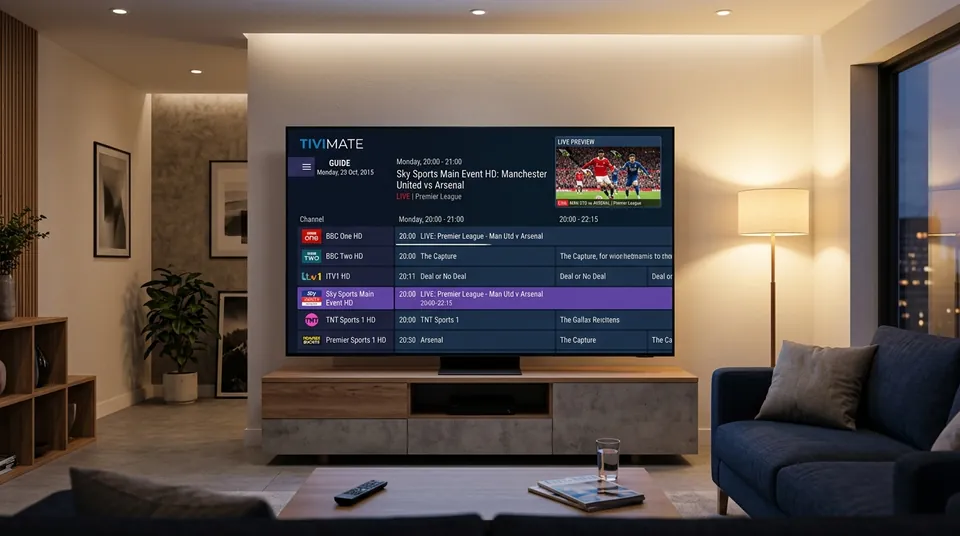 Fast Zapping • Native EPG Grid • Quad Multi-View
Why TiviMate Transforms the Firestick Experience
When you run TiviMate on a Fire TV Stick 4K Max, the interface responds exactly like a traditional high-end satellite or cable set-top box:
- Channel Zapping Under 1 Second: Switching between Sky Sports Premier League and TNT Sports occurs instantly without blank black screens or loading spinners.
- Quad Multi-Screen: Watch four simultaneous 3pm football fixtures on a single screen during busy Saturday matchdays.
- Integrated Catch-Up: Press left on the directional pad in the TV guide to instantly replay programmes broadcast over the past 7 days.
- Scheduled PVR: Connect a USB flash drive via an OTG cable and schedule recordings of late-night boxing or motorsport events while you sleep.
Can you take your Firestick (and your subscription) abroad?
Yes — this is one of the stick’s genuinely underrated advantages. The subscription isn’t tied to your house; it’s tied to your login. Plug the stick into any TV with HDMI and Wi-Fi — hotel, holiday let, family abroad — and everything works exactly as at home: same channels, same EPG, same VOD.
Two practical notes. First, hotel Wi-Fi is often throttled or login-walled; a travel router or phone hotspot solves most of it, and dropping to Full HD keeps things smooth on weak connections. Second, some UK-specific content behaves differently abroad for rights reasons — the same as iPlayer does. A VPN set to the UK on the stick resolves it, which is another quiet argument for the Firestick’s native VPN apps. For the full picture on watching outside the UK, see our devices hub.
Holiday Setup Tips for British Travellers
When staying at European resorts in Spain, Portugal, or Greece, hotel televisions often lock their HDMI inputs in hospitality mode. Bringing a compact micro-USB extension cable and universal Firestick remote lets you access HDMI 1 or HDMI 2 easily. If the hotel Wi-Fi requires a browser splash page (captive portal), Fire OS includes a built-in Silk browser pop-up that lets you accept hotel room terms in seconds.
Do you need a VPN on your Firestick for IPTV?
Need? No. The service works fine without one. But it’s the most asked follow-up question, so here’s the honest breakdown:
The reason UK viewers ask is ISP throttling: BT, Sky, Virgin Media and TalkTalk have been reported by users to throttle streaming traffic during live Premier League matches — dynamic measures that kick in as the match begins. A VPN routes your traffic around the throttling, which is why “VPN-friendly” is listed as one of the Firestick’s advantages: the apps install natively on Fire OS in a couple of taps.
Our position: try without first. If Saturday 3pm buffers but Tuesday evening doesn’t — and the stop-buffering guide has ruled out your home network — a VPN is a reasonable experiment, not a requirement. Don’t let anyone sell you a VPN as a mandatory IPTV accessory; it’s a conditional tool for a specific network problem. And never buy into the scare stories — watching IPTV is legal in the UK; the full straight answer is in our legality guide.
What should you check before match day?
A pre-season checklist, distilled from buyer threads — do this once and stop thinking about it:
- The right stick on the main TV — 4K Max 2nd gen (Android-based Fire OS, not a new Vega OS budget model), not the Lite.
- Wired where it matters — Ethernet adapter on the main TV’s stick; 5GHz Wi-Fi as the fallback elsewhere.
- TiviMate installed and logged in — with the EPG loaded before kick-off, not during it. First EPG load takes a few minutes; don’t do it at 2:55pm.
- Tested during a real match — the 24-hour free trial exists for exactly this. Saturday 3pm tells you everything; Tuesday afternoon tells you nothing.
- A backup plan for the big nights — know where catch-up lives in your app’s guide, so a missed kick-off is a scroll back, not a panic.
Do those five and the technology disappears — which is the entire point. You’re supposed to be watching football, not administering it.
Firestick IPTV FAQs
Which Firestick is best for IPTV in the UK?
The Fire TV Stick 4K Max (2nd gen) — fastest processor, Wi-Fi 6E, smoothest EPG and zapping. The standard 4K stick is the budget pick. Avoid the Stick Lite: its limited RAM causes buffering with large IPTV channel lists. In 2026, check new budget models don’t ship with Vega OS instead of Android-based Fire OS.
Can you get TiviMate on a Firestick?
Yes — TiviMate is Android/Firestick only, which is one of the main reasons the Firestick dominates IPTV setups. It sideloads via the Downloader app in minutes, and the premium tier (a few pounds a year) unlocks the full EPG customisation users rate so highly. Walkthrough: TiviMate page.
Is a Firestick better than a smart TV for IPTV?
For the app experience, yes — the stick runs TiviMate, which doesn’t exist on Samsung Tizen or LG webOS, and stays updated independently of the TV. For simplicity, the TV’s own apps (IBO app, Smart IPTV) win: one remote, no extra hardware. Best app experience = stick; simplest setup = TV app.
Do I need an Ethernet adapter for IPTV on Firestick?
Not required, but it’s the best stability upgrade for 4K sport on the main TV — wired beats Wi-Fi for the 25 Mbps of stable speed 4K needs, especially at peak hours. If wiring isn’t practical, use 5GHz Wi-Fi and drop to Full HD rather than fighting buffering.
Will my IPTV subscription work on a Firestick abroad?
Yes — the subscription follows your login, not your house. Plug the stick into any TV with HDMI and Wi-Fi. Hotel Wi-Fi can be weak (use a hotspot, drop to Full HD), and a VPN set to the UK handles any UK-specific content quirks.
How long does Firestick IPTV setup take?
Under 10 minutes: install the player app, paste in the Xtream Codes login, wait for the channel list and EPG to load. The step-by-step is on our Firestick setup page — and setup help over WhatsApp is free and unlimited.
Why is my Firestick IPTV buffering?
Nine times out of ten it’s the home network (Wi-Fi congestion, 2.4GHz band, ISP throttling at match time) or an underpowered stick (the Lite) — not the provider. Rule your setup out first with the fix buffering step by step: Ethernet, 5GHz, and a match-time test will isolate the cause in minutes.
Get the stick, take the trial, test it Saturday
The Firestick is a £30–60 decision; the subscription is the decision that actually matters. Get the right stick (4K Max, not the Lite), wire it if you can, and then put the service through the only test that counts — a live match, on your broadband, free for 24 hours.
Ready to Test Your Firestick Setup?
Start my free 24-hour trial on WhatsApp — tell us it’s for a Firestick, get your login plus the app recommendation in minutes, no card. Test it at 3pm Saturday. Try to break it. Compare the 1, 6 and 12-month plans when you’re ready.
Claim Free TrialMore device and app guides on our blog hub.