
IPTV Channels Not Loading? Black Screens and Playback Errors Fixed
“channels not loading.” “black screen.” “channels loading then black screen.” “spinning circle then black screen.” “black screen with audio.” “channel list is empty.” “playback error.” “some channels work, others don’t.”
This page owns one question: the channel won’t play — why? And the single most important diagnostic in this whole guide is the first one below. Get it right and you’ll know in thirty seconds whether the fix is yours to make or ours.
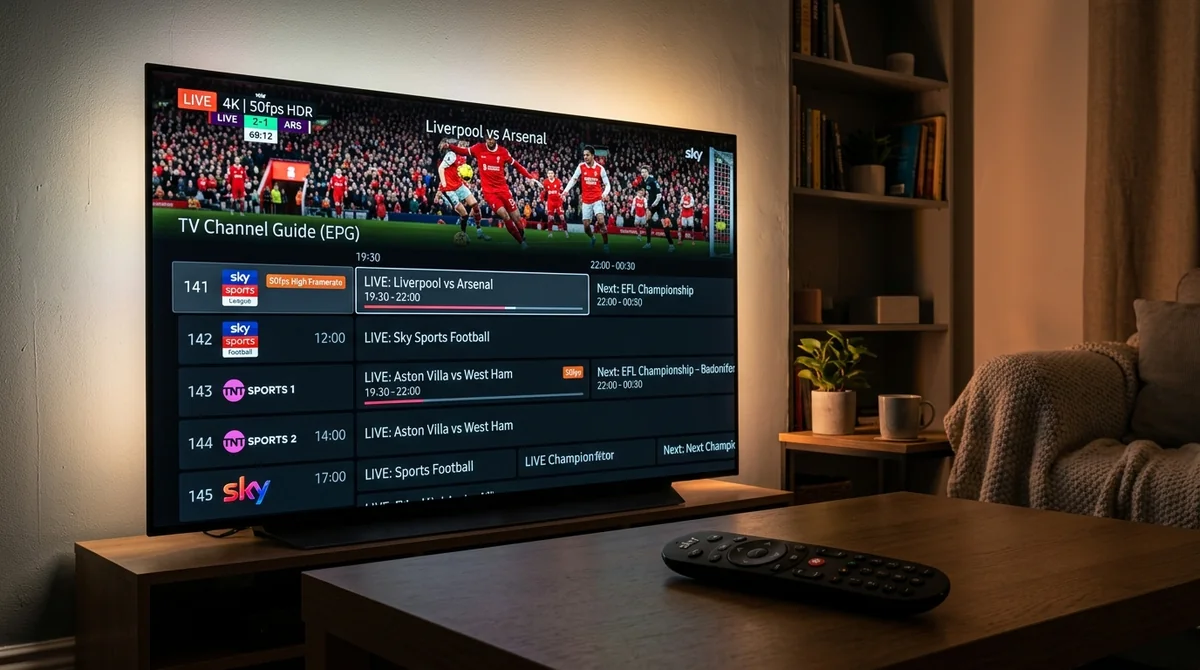
The One-vs-All Test: Do This First
Open the channel list and try several channels across different categories — a UK entertainment channel, a sports channel, a movie channel, an international one.
- One channel black, everything else plays → that channel’s source feed is dead or struggling. Nothing on this page will fix it — it’s provider-side. Report it to us and it gets replaced, usually the same day.
- Many or all channels black, or the channel list is empty → it’s your account, your playlist, your app, your network, or your ISP. Keep reading — the fix is below.
This distinction is everything. Half the “channels not loading” threads in community forums are people reinstalling apps to fix a dead source feed, which is like changing the tyres because the road is closed.
Black Screen WITH Audio = Decoder, Not Network
If the channel opens to a black screen but you can hear the programme playing, stop: this is not a network problem and not a dead source. The stream is arriving fine — your device just can’t turn the picture part into a picture. It’s the video decoder (or the HDCP handshake between the device and the TV).
Fixes, in order:
- Switch the decoder in your player: hardware ↔ software. In TiviMate: Settings → Player → decoder. In IPTV Smarters Pro: player settings. This is the fix more often than not.
- Try an external player — hand playback to VLC or MX Player and see if the picture appears.
- Check the HDMI/HDCP handshake — unplug the HDMI cable and plug it back in, or try a different HDMI port. HDCP handshake failures produce exactly this symptom on some TV/box combinations.
- Drop the stream quality a tier — some devices can’t decode the 4K HEVC version of a channel but handle its HD version fine.
If the black screen has no audio either, it’s not the decoder — work the ladder below instead. And if the picture freezes dead rather than going black, that’s our freezing guide.
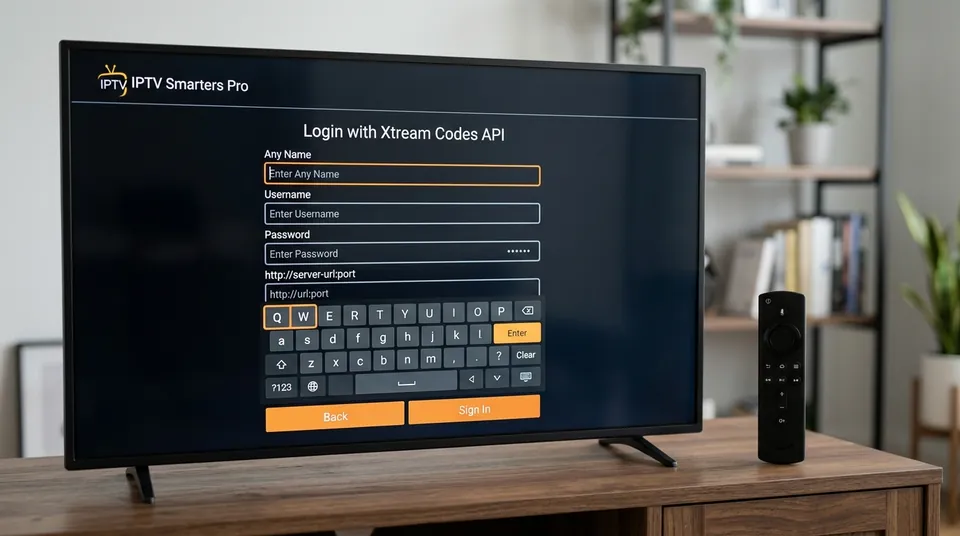
The Fix Ladder: All (or Many) Channels Won’t Load
Step 1: Refresh or reload the playlist
Playlists go stale. In IPTV Smarters Pro: use Reload User or Reload Playlist. In TiviMate: refresh the playlist. This re-fetches the current channel list and stream URLs from the server, and it fixes the “channels appear but won’t play” case where the app is holding outdated stream addresses. Quick, harmless, do it first.
Step 2: Check the playlist URL is alive
If you’re on an M3U setup: paste the M3U URL into a browser on your phone or PC. It should download a playlist file. If the browser gets a 404 or an error page, the playlist URL is dead — expired, changed, or mistyped — and no app setting will fix it. Message us for the current URL. If you’re on an Xtream Codes login instead, re-enter the login fresh (delete the saved profile and add it again — stale saved sessions cause exactly this). Our Xtream Codes setup guide and M3U explained cover both login types in detail.
Step 3: Clear the app cache and restart the app
Settings → Apps → your IPTV app → Force Stop, then Clear Cache. Not Clear data — that wipes your login and playlists. Restart the app and let the playlist load fully before testing channels. The “channel list is empty / no channels after login” case is often just the app failing to finish loading — give it a full minute on a big channel list.
Step 4: Check the subscription and the connection limit
An expired subscription can present as channels refusing to load rather than a clean error message. And a connection limit issue looks like this too: if another device in the house is already streaming on your one included connection, additional channels may refuse to play. Close the app on the other device and re-test. If you’ve added extra connections to your plan, make sure you’re within the limit. Check your plan status in your WhatsApp thread with us — and if it lapsed, renewing brings everything back immediately. Plan details are on the full pricing.
Step 5: The ISP block test — VPN on BEFORE opening the app
This is the UK-specific one, and it’s important. Premier League live blocking injunctions compel UK ISPs — BT, Sky, TalkTalk, Virgin, EE, Plusnet — to block streaming servers in real time during matches, renewed every season. The symptom: channels that worked all week refuse to load, or go black, right around kickoff. Community advice is blunt about this: connect the VPN before opening the IPTV app, then open the app and test.
Why before? Because the block can interfere with the app’s initial connection to the server, not just the streams. Opening the app first and then turning the VPN on sometimes doesn’t clear it — the app has already cached the failed connection. So: VPN on, wait for it to connect, then open the app.
If channels load with the VPN on but not without it, your ISP is blocking the server — it’s not your setup, not your login, and not our server being down. The VPN is the workaround. (Note: some ISP-level blocking isn’t match-related — certain ISPs and network setups, including CGNAT on some fibre providers, block IPTV servers generally. Same test, same workaround.) More background in our guide to IPTV legality in the UK.
Step 6: Change DNS — worth trying
Switching DNS to 1.1.1.1 or 8.8.8.8 is a two-minute change (router or device settings, easy to revert) that some users report helps with channels refusing to load. Direct “this fixed it” reports are sparse, so treat it as worth trying rather than a front-line fix — but it’s cheap to test, especially combined with the VPN test above.
Step 7: Restart the device and the router
Unplug both for 30 seconds, router back first (wait for the lights to settle), then the device. Clears stale network sessions that can leave the app talking to a dead connection. If the app itself is dead — not just channels, but the app itself — that’s a different diagnosis; go there instead.
Step 8: Update or reinstall the player app
An outdated player can fail on current stream formats — “playback error” on channels that used to work is the classic symptom. Update the app first; if it’s already current, reinstall it clean (on Firestick, re-sideload via Downloader). But keep expectations honest: reinstalling fixes the app, not the account, the playlist URL, or an ISP block. If steps 2, 4, and 5 point elsewhere, reinstalling is motion without progress.
Step 9: Contact the provider
If the ladder hasn’t resolved it, message us with: which channels won’t load (names, not “some of them”), what happens exactly (black screen? playback error? spinning circle then black? black with audio?), whether the VPN test changed anything, and your device and app. That tells us whether it’s a source feed to replace, a server-side line refresh, or an account issue — all provider-side fixes, all done while you wait.
When to Report a Dead Channel
Back to the one-vs-all test: if it’s one channel (or a small handful) while everything else plays, that’s a dead or struggling source feed, and the fix is entirely server-side. Don’t reinstall anything. Just message us the channel name — sources get replaced, usually the same day. Sports channels carry backup feeds on our side, so a single dead source rarely means a missed match; we’ll point you at the backup while the main feed is being swapped.
What helps us replace it fastest: the exact channel name as it appears in your list, what happens when you open it (black screen? error message?), and roughly when it started. That’s it — no troubleshooting needed on your end for this one.
“Playback Error” vs “Playlist Error” vs Empty List
Quick decoder ring for the messages:
- “Playback error” on one channel → dead source feed. Report it.
- “Playback error” on many channels → app/format issue (update/reinstall) or ISP block (VPN test).
- “Playlist error” or empty channel list → the playlist URL is dead or the app didn’t finish loading. Test the URL in a browser; give the app a full minute; re-enter the login.
- “Invalid login” / 401 → that’s not a channels problem at all, that’s login problems.
Talk to a Human
Channels not loading is one of the quickest things we resolve, because the one-vs-all test usually tells us the answer before you’ve finished typing. Message us on WhatsApp at +44 7877 162001 with the channel names and what you see — a real human answers, usually within minutes, day or evening. If it’s a dead source, we swap it. If it’s your setup, we walk you through it. And if the problem is ever on our side for long enough to matter, the 7-day refund promise apply. The rest of the help section is there for everything else, and if you’re still deciding, trial the service free for 24 hours to test every channel on your own broadband before spending a penny.
Still Seeing a Black Screen or Playback Error?
Our technical support team is live on WhatsApp 7 days a week. Send us the channel name and your broadband provider for instant stream swapping and line triage.