
IPTV Keeps Freezing? How to Fix It
“iptv keeps freezing.” “picture freezes but audio keeps playing.” “froze during the penalty shootout.” “screen froze completely, had to restart the app.” Freezing is the one that ruins the moment that matters — and it’s a different problem from buffering, with different fixes. This page is only about freezing. Follow the decoder-first ladder below.

Freezing vs Buffering: Know Which One You’ve Got
Before you touch anything, make sure you’re on the right page:
- Buffering = the spinning circle. The picture stops, the wheel spins, playback resumes. The player is waiting for data — a network problem. That’s our buffering guide.
- Freezing = the picture stops dead on a frame. Sometimes the audio keeps playing over the frozen picture; sometimes the whole app locks up and you have to force-close it. The player has the data but can’t turn it into a moving picture — usually a decoder or app problem. That’s this page.
They overlap — users report “freeze then spinning circle, then back” — but the distinction matters because network fixes (restarting the router, changing DNS) don’t fix decoder problems, and decoder fixes don’t fix network problems. The community sources back this up: freezes that look like buffering but aren’t are often codec mismatch, not a network issue.
One rule of thumb from community troubleshooting: picture frozen + audio continuing = decoder, almost never your internet. Memorise that one — it saves a lot of router-restarting.
The Decoder-First Fix Ladder
Freezing is a playback problem, so playback settings go first. Work down, testing the same channel for a few minutes after each change. One change at a time — if you change three settings at once you’ll never know what worked.
Step 1: Switch the video decoder
This is the top fix for picture-freezes-with-audio, and the first thing to try. Your player turns the stream into a picture using a decoder — usually hardware decoding (your device’s chip does the work) or software decoding (the CPU does it). Sometimes one handles a particular stream format better than the other.
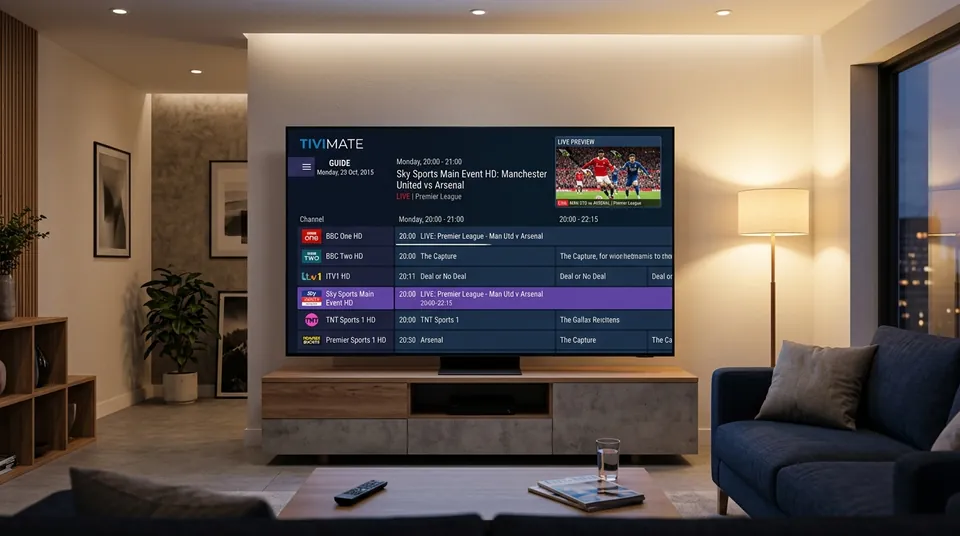
- In TiviMate: Settings → Player → change the decoder (hardware/software/auto).
- In IPTV Smarters Pro: Settings → Player settings → decoder options.
- Or switch to an external player entirely: ExoPlayer, VLC, or MX Player. TiviMate and Smarters both let you hand playback to an external app.
The classic case this fixes: freezes on 4K channels but HD plays fine. 4K streams are usually H.265/HEVC, which some device chips decode badly — especially older Firesticks and budget boxes. Switching decoder or dropping to software decoding resolves freezes that only ever happen on 4K channels.
Step 2: Drop from 4K to 1080p
Related to step 1, and worth its own slot because it’s so common. If the device’s decoder can’t keep up with a 4K HEVC stream, the picture freezes — not because your broadband is slow, but because the chip can’t process the picture fast enough. Drop the channel quality to 1080p and re-test. If the freezing stops instantly, you’ve found it: the device is the bottleneck. This hits Firestick Lite and older sticks hardest.
Step 3: Increase the buffer size
The player preloads a certain amount of stream ahead of where you’re watching. A bigger buffer gives the decoder more breathing room over small delivery hiccups. In TiviMate: Settings → Player → Buffer size → Large or Very large. Smarters has a playback buffer setting too. This is the fix when freezes happen every few minutes and then resume on their own.
Step 4: Clear the app cache
Settings → Apps → your IPTV app → Clear cache. Not Clear data — that wipes your login and playlists. A bloated cache causes exactly the kind of freezes that started appearing gradually and got worse. Takes ten seconds.
Step 5: Full power cycle — device and router
Not sleep mode: unplug the device for 30 seconds and unplug the router for 30 seconds, then bring the router back first (wait for the lights to settle) and the device after. Freezes that started after the device has been running for days often vanish here — memory leaks and stale sessions clear out with a real power cut.
Step 6: Update the app and the device firmware
Freezes that started after a Fire OS or Android update are a known pattern: the OS changed something and the player app hasn’t caught up. Check for app updates in the Amazon app store / Play store / wherever you sideloaded from, and check the device firmware too. While you’re at it: if the app updated recently and freezing started right after, that’s suspicious — try reinstalling the previous version or a different player.
Step 7: Free up storage and close background apps
Firesticks have 1.5–2GB of RAM and limited storage. When free storage drops under about 500MB, apps start misbehaving — freezes, lockups, the works. Uninstall apps you don’t use, clear caches across apps, and force-stop background apps eating RAM. This is the fix when the app doesn’t just freeze the picture but freezes entirely and kicks you back to the home screen.
Step 8: Try a different player app
Sometimes it’s just the app. TiviMate, IPTV Smarters Pro, OTT Navigator, XCIPTV — they all handle decoding slightly differently, and a channel that freezes in one plays fine in another. This is a great diagnostic too: if the same channel freezes in two different players, the problem is probably the stream or the server, not the app. Compare them properly on our app options.
Step 9: Toggle the VPN — both ways
ISP throttling during live events can produce freezing as well as buffering. The test: VPN on, re-test the same channel. If freezing stops, your ISP was interfering — keep the VPN on during matches. But a slow or distant VPN server can cause freezing too, so if you already had a VPN on, try it off. Test both states before deciding.
Step 10: Contact the provider
If freezing happens on one channel only, that’s the source feed — it gets replaced server-side, usually the same day. If it happens everywhere but only at peak times, the server may be congested — we can move your line to a different server (that’s what anti-freeze servers are for). When you message us, include your device type, the app and player you’re using, whether the audio keeps playing during the freeze, and which channels freeze — the audio detail especially, because it points straight at the decoder.
Why Freezes Happen on 4K but Never on HD
This comes up constantly in troubleshooting threads, so it gets its own explanation. 4K streams use the H.265/HEVC codec to compress all that picture into a stream your broadband can carry. HEVC decoding is much harder work for the device’s chip than the H.264 used by HD channels.
So: HD channels decode easily, 4K channels overload the chip, and the picture freezes — while the audio (a separate, much lighter stream) keeps playing happily. Your internet speed is irrelevant to this failure mode, which is why the speed test looks fine and the router restart does nothing. The fixes are the decoder switch, the external player, or accepting 1080p on that device. It’s not a fault in the subscription — it’s physics in the chip.
When Freezing Means Something Else
- Freezes on one channel only, everything else fine → dead or overloaded source feed. Not your setup. Report it and it gets swapped server-side.
- Freezes everywhere, only at peak hours (7–11pm) or only during big matches → server congestion or ISP throttling. The VPN test in step 9 separates the two: VPN fixes it, it was the ISP; VPN changes nothing, talk to us about a server move.
- Freeze → spinning circle → playback resumes, on repeat → you’re getting a bit of both. Work the buffering ladder for the network side, then this page’s decoder side.
- The app freezes entirely and crashes to the home screen → usually storage/RAM (step 7) or a corrupt app install (reinstall). See also our guide for when IPTV stops working completely.
The Five-Minute Version
If you don’t want the full ladder: switch the decoder first, then drop to 1080p, then clear the cache, then restart everything. That resolves the overwhelming majority of freezing cases because the overwhelming majority of freezing cases are the device struggling to decode the stream.
Still frozen? Message us on WhatsApp at +44 7877 162001 — a real human answers, usually within minutes — with your device, app, and whether the audio keeps playing during the freeze. That’s the one detail that tells us exactly where to look. And if the problem turns out to be on our side, the refund policy stands. Our full troubleshooting hub covers the rest, and the speed guide for IPTV will tell you honestly whether your line is up to 4K in the first place.
Still Experiencing Screen Freezes on Your Device?
Our technical support team is online 7 days a week on WhatsApp. Send us your device name, player app, and whether audio continues playing for immediate decoder triage and server adjustments.