
IPTV on Smart TV — It’s the OS That Matters, Not the Brand
Every week someone asks “can I install IPTV on my Hisense/TCL/Philips TV” and the answer is always the same question back: what operating system does it run? A “smart TV” is not one platform — it’s six or more incompatible ones, and the app store on your TV is not the Google Play Store. This page is the 30-second OS check plus the honest route for each system. Samsung and LG owners get their own full guides — Samsung’s Tizen guide and LG’s webOS guide — because those two deserve the depth. Everything else lives here.
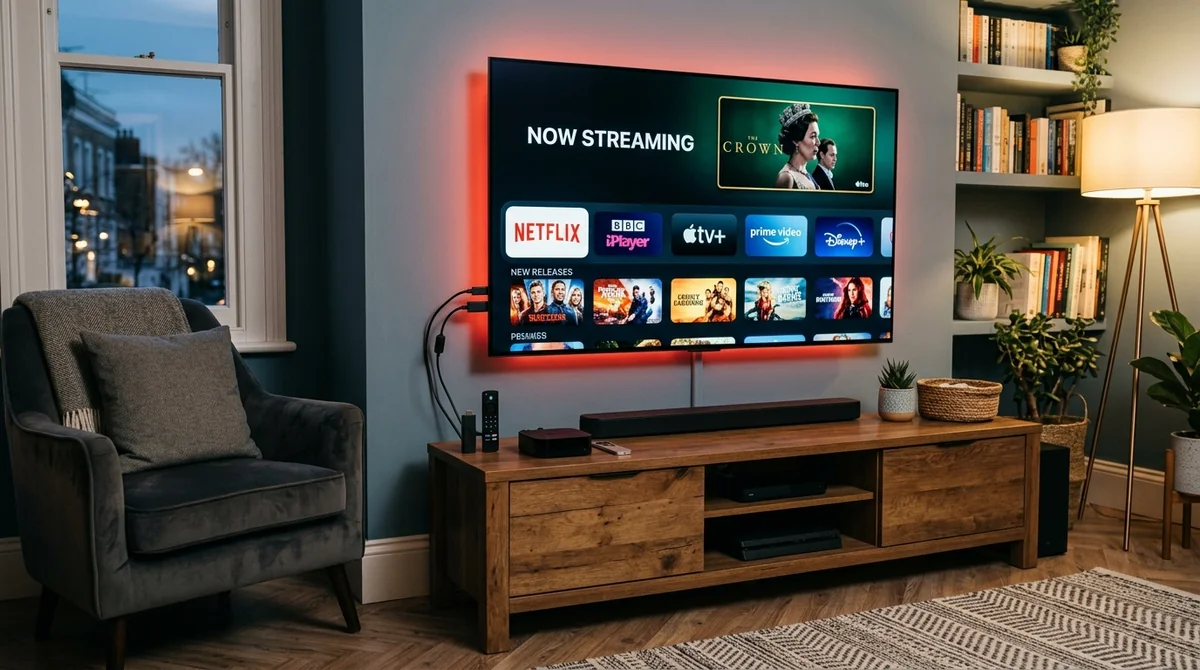 Android TV, VIDAA, Roku & Fire TV Built-In
What Operating System Does Your Smart TV Run?
The entire community discussion collapses to this one step, so do it first. The instruction every guide uses: Settings → About (or Support / System Information) — the OS name is listed there. Look for one of these:
- Android TV / Google TV — the easy one
- Tizen — Samsung only (→ Samsung guide)
- webOS — LG only (→ LG guide)
- VIDAA — Hisense and some Toshiba models
- Roku TV — TCL/Hisense Roku models
- Fire TV built-in — newer Panasonic, Toshiba, Insignia sets
- Saphi — older/cheaper Philips models
- SmartCast — Vizio
As one widely-quoted community line puts it: “You cannot install an Android APK on every Smart TV… The service may be the same, but the installation method is different.” The service — your subscription — genuinely is the same. The installation method is whatever your OS allows.
The OS Map: Which Route Your TV Gets
| Your TV’s OS | Typical brands | Your IPTV route |
|---|---|---|
| Android TV / Google TV | Sony BRAVIA, newer Philips, TCL, many Hisense, Xiaomi | Google Play Store: TiviMate, IPTV Smarters Pro, OTT Navigator — the easy route |
| Tizen | Samsung | Dedicated Samsung guide |
| webOS | LG | Dedicated LG guide |
| VIDAA | Hisense (many), Toshiba | No community-agreed app — external stick recommended (see below) |
| Roku TV | TCL/Hisense Roku models | No native IPTV apps — external stick or casting; community says avoid |
| Fire TV built-in | Newer Panasonic, Toshiba, Insignia | Fire OS rules apply — but check for Vega OS on the newest models (see below) |
| Saphi | Philips (older/cheaper) | Closed — external stick |
| SmartCast | Vizio | Router/Smart DNS or external stick |
Find your row, follow your route. If you’re still unsure which guide is yours, the device compatibility indexes all eight device walkthroughs. The sections below explain each OS route.
Android TV / Google TV: The Easy Route
If your Sony BRAVIA, TCL, or Hisense runs Android TV or Google TV, you’ve won the smart TV lottery. TiviMate installs straight from the Google Play Store — no sideloading, no USB rituals, no workarounds. The full experience — free vs premium, the best boxes, recording, VPN apps — is covered properly on our Android TV page, which owns this platform. Short version: install the player, log in with Xtream Codes, done.
My TV Runs VIDAA — Which IPTV App Works?
Honest answer: there isn’t a community-agreed one. VIDAA (Hisense’s own system, also on some Toshibas) came up repeatedly in the research, and in every case the discussion ends the same way — no well-evidenced IPTV app consensus exists for it.
So here’s the honest recommendation rather than an invented app list: don’t fight the TV’s app ecosystem. Buy an external streaming device, plug it into an HDMI port, and run IPTV from there. A Fire OS Firestick (check the model — avoid the Vega ones, per our setting up a Firestick) or a Chromecast with Google TV turns any VIDAA set into a proper IPTV TV for the price of a takeaway. “Any television with an HDMI port” plus a stick is the community’s pragmatic universal answer for closed systems, and VIDAA is exactly the case it was made for.
 TiviMate & Xtream Codes • Superior Hardware Performance
Roku TV and IPTV: Why the Community Says Avoid
Roku TVs — sold under TCL and Hisense badges — are the one device the IPTV community consistently tells people to steer clear of. There are no native IPTV player apps on Roku’s channel store, and Roku’s closed system offers no sideloading route. Mirroring and casting workarounds exist (cast from your phone to the TV), but they’re fiddly for daily watching and the consensus is blunt: “Roku: the one device to avoid” for IPTV.
If you already own a Roku TV, the fix is the same universal adapter: a Firestick or Android stick in an HDMI port. The TV becomes a dumb screen, the stick does the work.
Panasonic Fire TV Built-In: The Vega Check Applies Here Too
Newer Panasonic sets ship with Fire TV built in — which sounds ideal, until you remember the Vega problem. The same rule from our Firestick instructions applies to the TV itself: check Settings > My Fire TV > About. A 1.x/2.x software version means Vega OS — no sideloading, no IPTV players — and no workaround exists. Fire OS versions (7.x) work exactly like a Firestick: enable unknown sources, install Downloader, install your player.
If you’re shopping for a Panasonic now, check the OS before it goes on the wall. The model year matters more than the badge.
Saphi (Philips) and SmartCast (Vizio): Closed Systems
Philips’ Saphi OS (older and cheaper Philips models) and Vizio’s SmartCast are both closed shops with no IPTV player route worth recommending — the evidence for any native app on either is thin to nonexistent. Same prescription as VIDAA: external stick, HDMI port, done. Your subscription credentials work on the stick exactly as they would anywhere else — one subscription, and you just use it where the apps exist.
Do I Need a Firestick If My Smart TV Already Has Apps?
The community answer is refreshingly practical: if your TV’s OS has the apps, no. If it doesn’t, a stick is cheaper than fighting the TV. “An external streaming device can sometimes make things easier” is the oft-quoted line, and it’s right — a £30–£50 stick running TiviMate will outperform a £1,000 TV’s built-in app ecosystem on a closed OS.
There’s a second, quieter reason to prefer the stick route: upgradeability. TV manufacturers abandon their app stores; sticks get replaced every few years. If your VIDAA or Saphi TV is otherwise fine, the stick keeps it useful without replacing the panel.
Can I Use a VPN on My Smart TV?
This question is really “does my TV’s OS allow VPN apps,” and the answer splits exactly along OS lines:
- VPN app installs directly: Android TV / Google TV, Fire OS sticks and Fire TV built-in, Apple TV (tvOS 17+). Download from the store, sign in, connect.
- Router VPN or Smart DNS only: Samsung Tizen, LG webOS, VIDAA, Saphi, Roku TV, SmartCast. No VPN apps exist for these systems.
Whether you need one is a separate question, and the community’s advice is the same everywhere: test with it off first. A VPN routes around ISP throttling at match time, but it can also cause the buffering you’re trying to fix. If your TV can’t run a VPN app, our Firestick how-to and Android TV guide cover devices that can — another quiet argument for the stick.
Buying a New TV for IPTV? Check the OS Before the Badge
If you’re TV shopping with IPTV in mind, the brand on the bezel matters less than the software inside — and sales listings rarely spell it out. The pre-purchase checklist the community wishes everyone knew:
 OS Pre-Purchase Checklist • Avoid Closed App Stores
- Confirm the OS, not just “smart TV.” Android TV / Google TV gives you the Play Store and TiviMate. Tizen (Samsung) and webOS (LG) give you their own app stores with good-but-limited players. Anything else — VIDAA, Saphi, SmartCast — means budgeting for a streaming stick too.
- Check Fire TV models for Vega. Newer Fire TV built-in sets (and Fire TV sticks) may run Vega OS, which can’t sideload at all. Settings > My Fire TV > About: 1.x/2.x means Vega.
- Avoid Roku TV for IPTV. No native players, no sideloading — the community consensus is clear.
- Don’t overpay for the panel. A mid-range TV plus a Fire OS stick or Chromecast with Google TV will outperform an expensive set running a closed OS. The stick is the cheapest upgrade in home entertainment.
Get the OS right and the rest of this page becomes a five-minute job.
Smart TV IPTV FAQs
Why can’t I find TiviMate on my TV’s app store?
Because your TV isn’t running Android/Google TV. TiviMate is an Android app — it only appears in the Google Play Store. On Samsung (Tizen), LG (webOS), or VIDAA sets, it will never appear no matter how you search.
Is it better to use the TV’s own apps or buy a Firestick?
If your TV runs Android/Google TV, its own apps are fine. On any closed OS — VIDAA, Saphi, Roku, SmartCast — the Firestick (a Fire OS model) is the better experience and the community’s standard advice.
Will my subscription work if I switch devices?
Yes. Your login works across all of them — TV apps, sticks, phones, laptops. The full subscription details cover what’s included, and the pricing details shows the plans.
Not sure which route your TV needs? We’ll sort it out.
Message us on WhatsApp at +44 7877 162001 with your TV brand and model number — we’ll identify the OS, tell you the exact app and setup, and get your 24-hour free trial running. No card, no commitment.